Learn to DJ in your browser
You can start learning to DJ with a computer, a browser and compatible music files. Hearhood gives you decks and a mixer for practising cueing, tempo and transitions without buying a controller or creating an account.
Practise with your own compatible music files in Hearhood's DJ workspace. Explore where a track starts, how its tempo behaves and how you bring another track into a mix. The decks, the mixer and your library run in the browser and need no account.
Open the DJ workspaceFollow a first transition
Plan the places you will return to
Plan hot cues and memory cues with one track and three markers. Check gate behaviour, reload persistence and what a metadata export contains.
Practise one useful skill
Try organising a small library with tags and smart playlists or comparing cues, loops, rolls and beat jump. These computer walkthroughs use isolated synthetic practice audio and state what was checked.
Begin with one track
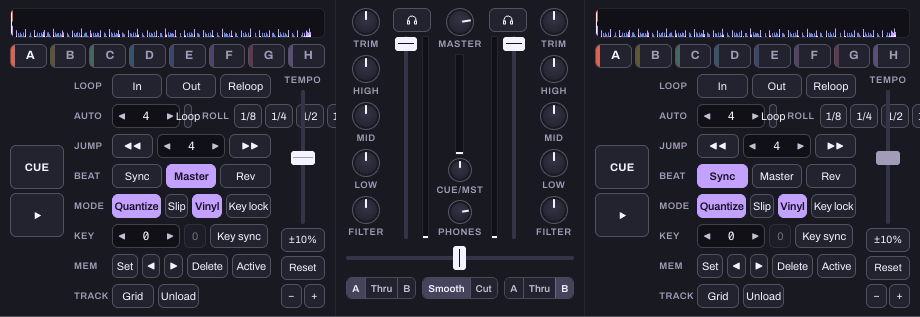
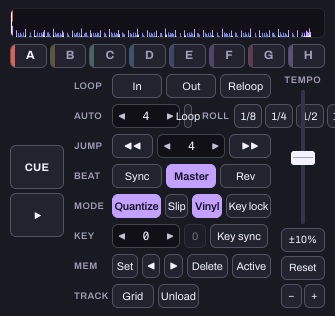
Above the decks, Start here lists three steps: connect a controller (or No controller), bring in your music, load two tracks. Bring music in with Add files (copied into this browser's storage on this device) or Add folder (Chrome and Edge on a computer; read in place, nothing copied), or try Free music, a list of tracks under licences that allow mixing. Load a track by dragging it onto a deck, or select it and press Shift+← for deck 1 or Shift+→ for deck 2. Get comfortable with its position and Play. The CUE button returns the deck to the cue point, the place in the track it goes back to; hot cue pads A to H mark more places you can jump to. Try them before bringing in a second track.
Make one transition at a time
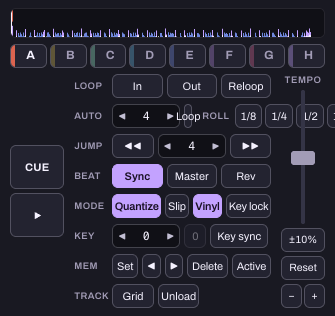
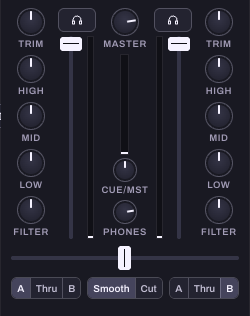
With two tracks loaded, work on the moment the next track enters. You can explore tempo (Sync and the tempo control on each deck) and the mixer (channel faders, EQ knobs, crossfader) separately rather than trying every control during a single transition. Ask the assistant to explain the control you are using or to guide one step at a time; it can also ring a control on screen to show you where it is. What the assistant does on the decks cannot be undone with a button, so ask it to explain before you ask it to act.
- Walk me through the CUE button and hot cues, one step at a time.
- Explain the difference between the channel fader and the crossfader.
- Walk me through matching the tempo of these two tracks.
Use a setup that works for you
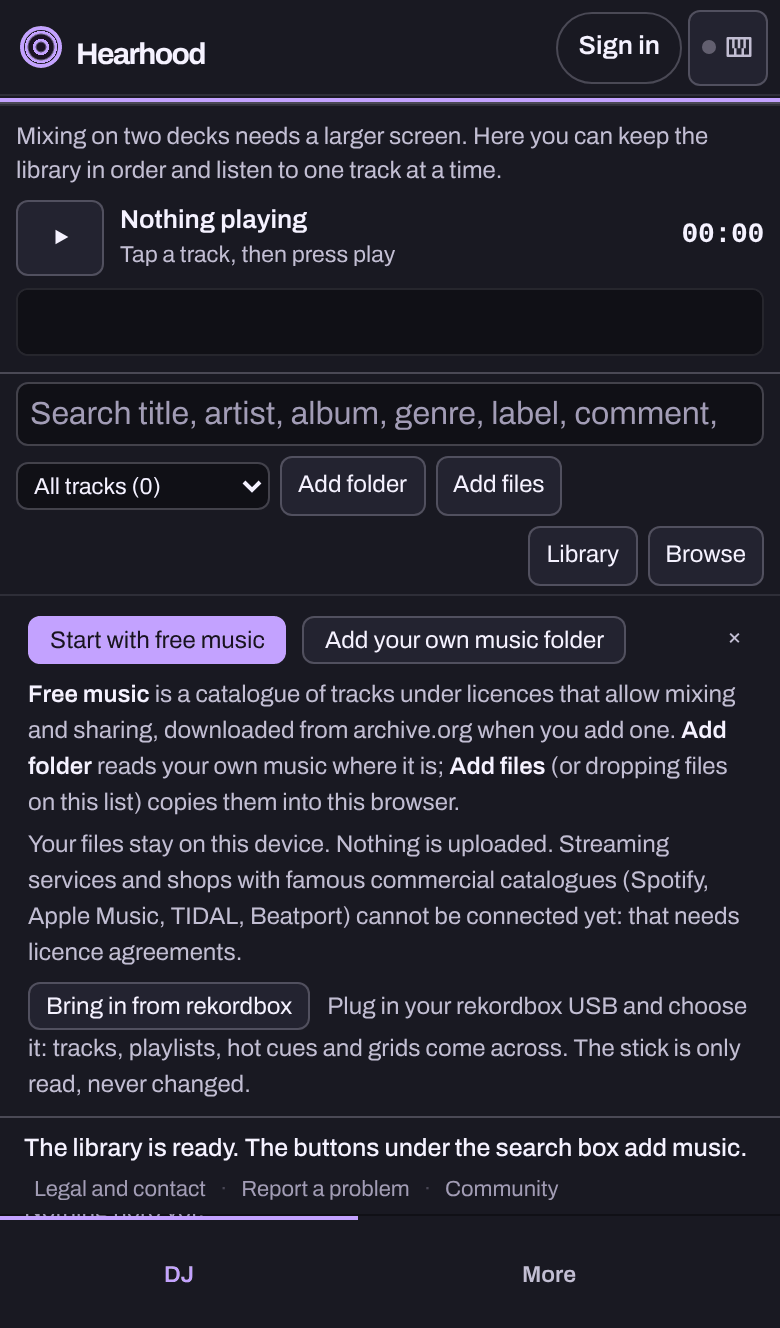
Start with the on-screen controls and the keyboard. If you use a controller, it needs Chrome or Edge on a computer (Web MIDI); Equipment at the top of the app shows what is connected. Mappings are specific to the model and some are marked experimental in the app, so check your own device before relying on it. On a phone the DJ workspace shows the library and one track.
What the DJ workspace has
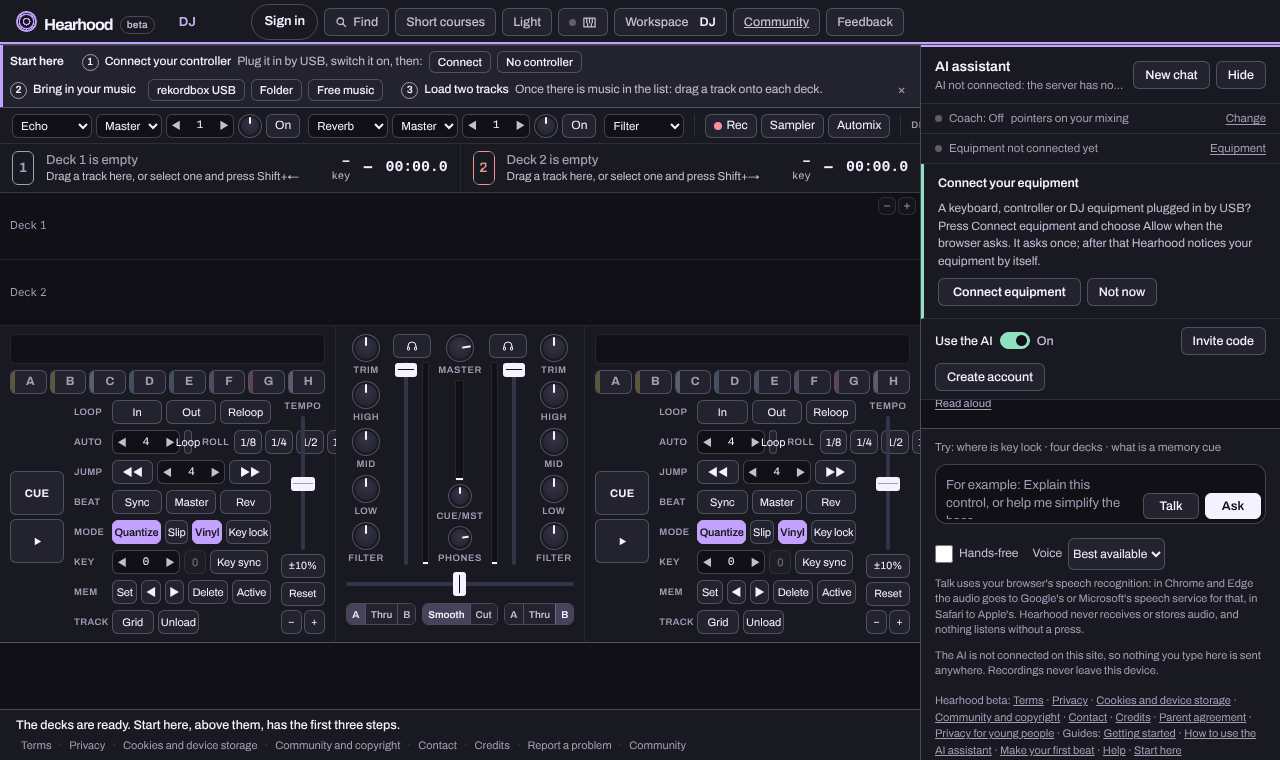
If you already DJ with rekordbox, Serato or Traktor, this is the list to check before you decide whether Hearhood is worth your time. Everything here runs in the browser and works without an account.
Decks
Two decks, or four (Decks 2 | 4 in the top row; four come up by themselves when a four-channel controller connects). Each deck has a scrolling waveform with beat lines, coloured by lows, mids and highs, a strip of the whole track, a platter, CUE, play, eight hot cues A to H, memory cues (Set, previous, next, Delete, Active loops), loops (In, Out, Reloop, auto Loop from 1/64 to 512 beats, halve and double), loop Roll from 1/8 to 4 beats while held, beat jump, Sync, Master, Quantize, Slip, Vinyl, Rev, a tempo fader with a 6, 10, 16 per cent or wide range, and pitch bend.
Beat grid and key
Every track is analysed in the background for tempo, first beat and key. A grid whose tempo changes (from a rekordbox stick or XML) keeps every change: sync, loops, jumps and bar counts follow the tempo where the deck is, and the changes are marked on the waveform. Grid on a deck fixes a grid that is off: halve or double the tempo, nudge every beat line, move the downbeat, or tap the tempo in. Keys show as Camelot numbers or classic names. Key lock (rekordbox's Master Tempo) keeps the pitch while the tempo changes; key shift moves a track up to twelve semitones either way; Key sync shifts a deck to the nearest key that goes with the master deck, two semitones at most.
Mixer and headphones
Per channel: Trim, three-band EQ, Filter, a fader, a headphone cue button and a meter; then Master, the headphone Cue/Mst blend, Phones level and a crossfader with Smooth or Cut curve. Two beat FX units in a row (echo, reverb, filter sweep, flanger, phaser, crush, trans, echo out), each on a deck or the master, timed in beats, and a Colour choice for every channel's filter knob: Filter, Sweep, Crush or Dub echo. A sampler under the console: eight pads in two banks, loaded with drums from Hearhood's own kits or your own short sound files, one-shot or looping, with Sync to start on the master deck's next beat, its own level and headphone cue. A controller's Sampler pads play them. Automix in the top row plays the list on show by itself: the next track is synced, started on a phrase and faded in over sixteen bars. Output chooses where the sound goes: speakers only; split, with the master in the left ear and the cue in the right; or four channels, with the master on 1 and 2 and the headphones on 3 and 4, for a controller or sound card with four outputs.
Library
Playlists, smart playlists that fill themselves from rules (a tempo range, a key and its neighbours, tags, a rating, genre, words, when a track was added or last played), tags of your own on every track (rekordbox's My Tag comes in through its comment), history, ratings, colours, labels and comments; search by word or with artist:, genre:, tag:, key:8a, bpm:120-128 and rating:4; related tracks, a Prepare list for the next set, duplicates, missing files and relocate, and daily safe-keeping copies of cues, grids and playlists. Related lists what goes after the track that is playing, best first, scored on tempo, key, what you played after it before, genre and rating, with the reason beside each; a controller's DISCOVER button opens it once taught. A rekordbox USB stick or rekordbox.xml is read where it is with its playlists, cues, loops and grids, and nothing on it is ever changed. Export the library as rekordbox XML writes cues, memory cues, loops, grids, colours, labels and playlist folders to a file rekordbox can import.
Controllers
Web MIDI in Chrome or Edge on a computer. Hearhood carries mappings for about thirty-five controllers (Pioneer DDJ family, Numark, Hercules, Roland, Denon) and a Teach your controller walk-through for any other; the mapping table in Equipment shows every control with the message it is tied to, built in or taught, and lets you learn, change or forget one; a map saves to a file and loads from one. Beat Loop pads start loops of 1/4 to 32 beats and Shift with a Beat Loop pad is a loop roll. With a controller connected, a live drawing of it under the decks follows every knob, fader and pad. Only the DDJ-GRV6 mapping has been checked on real hardware; treat the others as a starting point and run the twenty-minute controller test first.
Stems
A track with stem files shows a button a part on its deck: drums, bass, vocals, other, on or off (or half). Add the files in Info › Stems, or drop files named like “Song - Drums.wav” beside “Song.mp3” and they attach by themselves. The files come from rekordbox, Serato, Moises or any splitter; Hearhood does not split a track itself.
Not here yet
Splitting a track into stems here, streaming services, timecode vinyl, lighting and video. Rekordbox, Serato and Traktor all have most of these; Hearhood tells you plainly when you ask.
Know what you are practising with
This beta is a DJ practice tool, not a commercial-song streaming catalogue. Importing a file does not grant permission to distribute or publicly stream it. Rec records your mix to a WAV file on this device; it is a recording of what you played, for your own listening. The help page has more on files and rights.
Give your first practice set a plan
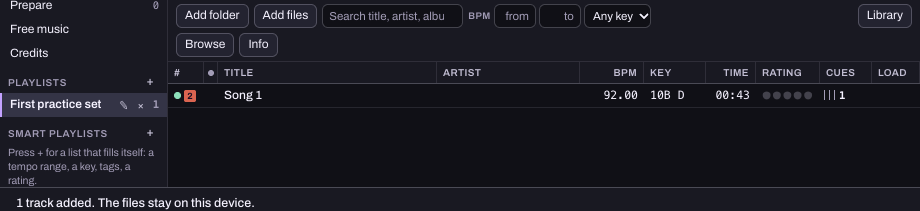
When choosing tracks feels harder than mixing them, start with a shortlist. The first practice set walkthrough shows how to make a playlist, mark a starting cue and rehearse one join at a time.
Troubleshoot a transition
If the BPM numbers match but the rhythms do not, separate tempo from beat position. If two singers compete during the overlap, find a clearer handover and mark a cue. Each guide focuses on one listening decision and shows the current desktop controls.
Keep your preparation and understand the sound
- Recover missing music files without rebuilding your DJ preparation.
- Understand speed, pitch and key lock with original reference audio.
- Choose a suitable device and browser.
- Download practice tracks and watch short walkthroughs.
Prefer a guided learning route?
Follow a beginner DJ pathway to connect a few small tasks, the matching existing Short courses and a practical next step. For family offline plans or another musical interest, choose a learning route.
Follow your first transition
The first DJ transition guide walks through importing files, loading decks and practising a crossfade on a computer, with a screenshot of the actual workspace. If you cannot hear a track, use the sound checklist.
Your first three DJ lessons
- Bring two songs in and out of a mix. Learn the channel levels and crossfader first.
- Count beats and bars, then listen for phrase changes.
- Prepare a small practice set and rehearse each join.
Can I practise without a controller?
Yes. Begin with the screen and keyboard on a computer. Learning which control changes the sound is useful before adding hardware. Hearhood's phone layout is smaller and does not provide the same full two-deck practice layout.
Can the AI hear my mix?
No. It uses available track information and control settings, not a listening judgement of your audio. Ask it to explain a control, then judge the transition by listening yourself. AI access is separate from the no-account creative tools.
Comparing browser DJ tools?
Read Hearhood vs DJMixer.online for the starting controls, practice path and recording-workflow differences.