No sound? Follow the signal one step at a time
If playback looks active but you cannot hear anything, start with the simplest checks below. Keep your project open. You do not need to clear browser data or start a new song to check the output.
1. Start playback from the page
Click or tap the app's own Play control. In Produce, it is in the top bar. In the Studio, it is beside the transport position. In DJ, each deck has its own triangular Play button beside CUE.
Some browsers wait for a click before allowing a page to make sound. If DJ shows Sound is waiting for one click, press Start sound. If the play position does not move after that, check that the song has a part to play or the deck has a loaded track.
2. Check where your device is sending sound
Start at a comfortable device volume. Check whether the output is your laptop speakers, wired headphones, a Bluetooth device or an audio interface. A recently connected device may have become the output without you noticing. Also check whether the browser tab itself is muted.
Try a familiar sound from another app. If that is silent too, check the device's sound settings and headphone connection first. Return to Hearhood once the output works.
3. Check the workspace you are using
In Produce
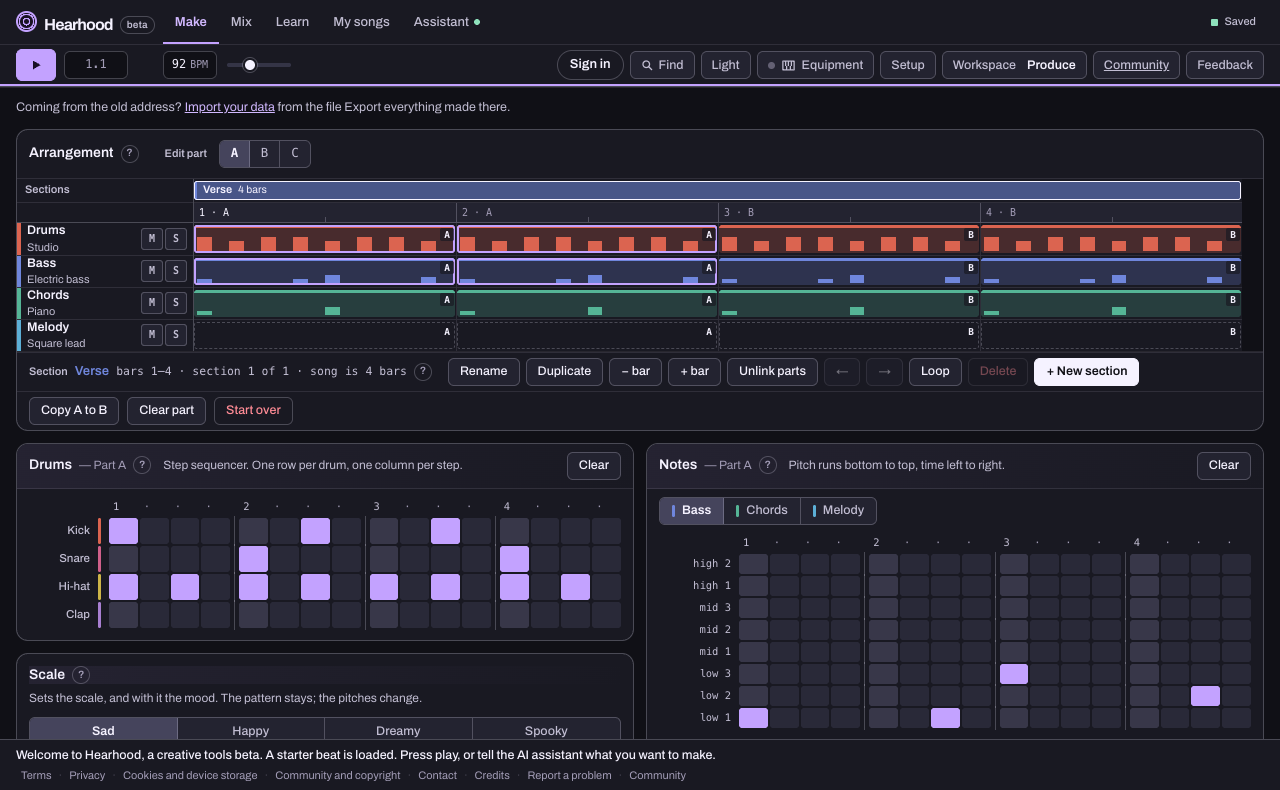
Open Make and look at the Drums and Notes cards. At least one hit or note must be switched on in a part that the arrangement plays. Then open Mix and check that the part is not muted and its level is up. If you had used Solo on a different part, check that too.
In the Studio
Check that there is a region on a track where playback is passing. A Lyrics box contains text, so typing words there does not by itself create sound. For an audible starting point on a new song, choose Start with drums or add another musical part.
Check the track's mute and solo controls and its volume. If you are listening for a voice take, confirm you actually made a recording rather than only writing the words.
In DJ
Read the title at the top of the deck. If it says the deck is empty, load a track from the library first. Press Play on that deck, then check its channel level, the crossfader and the Master level in the mixer.
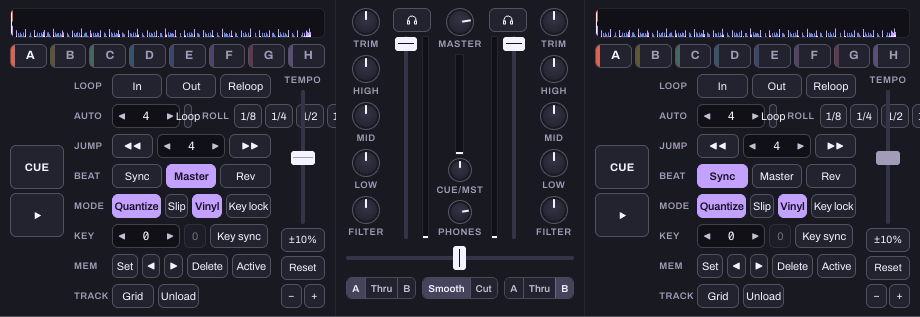
With the default A and B assignments, a crossfader all the way to the opposite side can silence the playing deck. Double-clicking the crossfader resets it to the middle. If you changed EQ or Filter, return those controls to their starting positions too; their tooltips describe the reset.
4. Check the DJ output mode
Open Output above the decks. For a straightforward test through your normal device output, use Speakers. Split cue and multichannel setups are for specific headphone and audio hardware arrangements. Choose the output that matches what you actually have connected.
A lit headphone-cue button sends a deck to the cue route. It does not replace starting playback or opening the path to your speakers. If your setup is unfamiliar, begin with the simpler speaker output and add headphone routing after you have sound.
5. Find a control without guessing
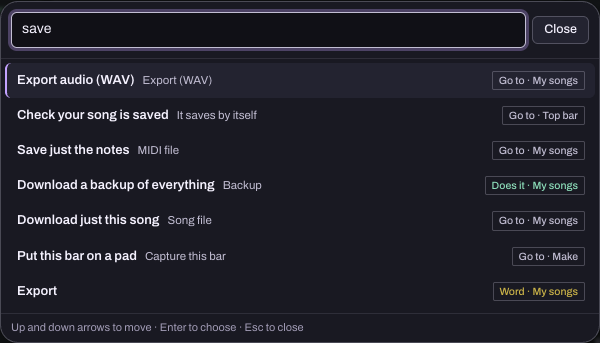
Open Find in the top bar. Search for a simple word in your current workspace. For example, searching save in Songwriter finds the Studio export control. The nearby ? buttons explain musical terms and controls without needing AI access.
Still stuck? Send a useful problem report
Use Feedback in the top bar. Include your device, browser, workspace, what you pressed, whether the play position moved and which sound checks worked. A screenshot of the relevant controls can help, but leave out account details, passwords and invite codes.
For example: "Chrome on a Windows laptop, DJ workspace. Deck 1 has a track loaded and the timer moves. Other apps have sound. Output is Speakers, channel and Master levels are up, crossfader centred. Still silent."
That gives the person investigating a clear starting point. Keep an editable backup of your work before trying broader browser troubleshooting.