What do you need help with?
Start with the task or problem below. You can use the tools without reading a full manual.
- Getting started
- Songwriting and mixing questions
- Sound and recording
- Saving your work
- AI assistant
- Accounts and access
- Music files and equipment
- DJ decks and mixer
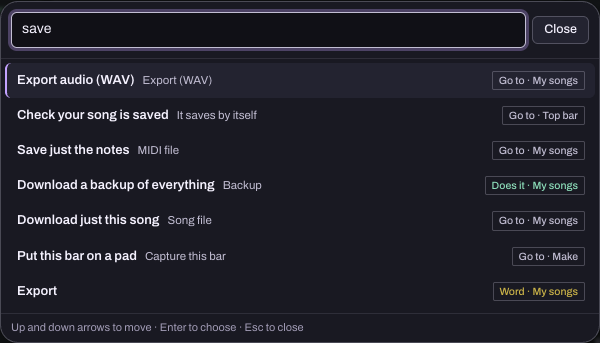
Inside the app, Find in the top bar (Ctrl+K or /) searches every control and term, and every panel has a ? button that explains it.
Do I need to know music theory?
You can start with a drum pattern, a short melody or a track you want to practise with. Learn a term when it becomes useful. The guides and assistant can explain the controls as you use them. The Getting started page walks through a first session, and Make your first beat is a hands-on start.
Can I turn humming into an instrument part?
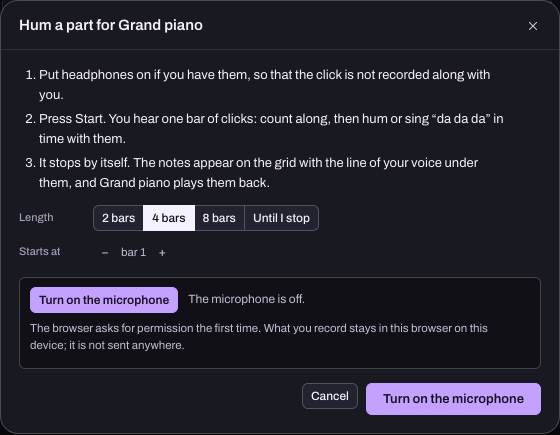
Yes. In Workspace › Songwriter, choose Hum a part and pick an instrument. Record a short phrase, then listen back and correct any notes that need it. Add chords, drums and your voice to develop the song. This captures one musical part at a time; follow the humming-to-song walkthrough for the full path.
Do I need the AI assistant to use Hearhood?
No. You can explore the creative tools directly. The assistant is an optional source of explanations and supported changes, subject to the access and allowance shown in the app.
Try a short exercise for the part you are stuck on.
Why is there no sound?
Start playback with a click or tap: Play in the top bar of Produce, or Play on a deck in DJ. Check your device volume and the output device. In DJ, a browser lets a page make sound only after a click or key press on the page itself, so if the panel "Sound is waiting for one click" appears, press Start sound; then check that a track is loaded on the deck that is playing and that its channel fader and the crossfader let sound through. In Produce, check that the pattern has drum hits or notes switched on and that the track is not muted in Mix.
Do I need a controller or microphone?
You can start with on-screen controls. A microphone is needed only for recording features that use it (Record in Mix, and Hum a part and Record your voice in the Studio); the browser asks for permission when you press that button. Controller support depends on the model, mapping, browser and device: a plugged-in controller or keyboard needs Chrome or Edge on a computer. The Equipment button at the top of the app shows what is connected and what the app can do with it.
Recording does not start
If the browser blocked the microphone, look for the microphone icon beside the address bar and allow it for this page, then press the button again. If no microphone is found, check the system sound settings. Chrome, Edge, Safari and Firefox of the last few years can record; older browsers cannot.
Where are my projects saved?
In the current beta, projects and recordings are saved in the browser on your device unless a feature specifically says otherwise: Produce songs in this browser's storage, DJ library files copied into this browser's storage (or read in place from a folder), Studio songs and takes in this browser's database. Signed-in account sync also keeps an editable copy of songs, versions, creative-tool milestones and DJ cues and playlists. Recorded takes and DJ audio files are excluded. Keep those audio files and an export including recordings separately. The server also handles account details, community content, feedback and AI messages; see the privacy notice. The Saved chip in the top bar tells you the current state. Check the export options before clearing site data or moving devices. To carry everything to another device or browser, use My songs › Move my data to another address › Export everything, then Import everything there.
Is a project backup the same as a WAV export?
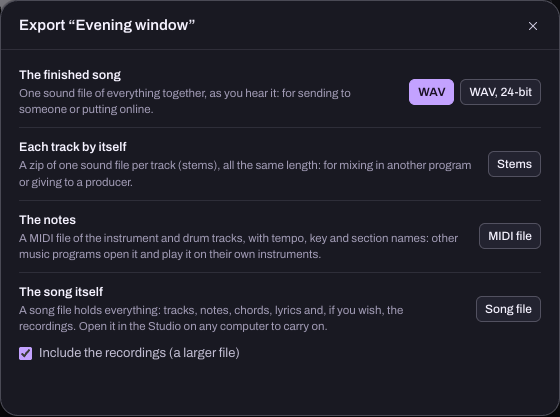
Not necessarily. An audio export (Export WAV (full quality) or Export MP3 (small, for sharing) in My songs, WAV in the Studio's Export sheet, Rec in DJ) lets you listen outside Hearhood. A project backup (Back up everything and Download this song in My songs, the Song file in the Studio's Export sheet, Export everything under Move my data) preserves information you can edit again. Export stems and MIDI (.zip) gives one audio file per track plus the notes, for other music software. Test a backup before removing the original.
The app says "Not saved"
This browser is not letting the app save; private browsing often does that. Keep the page open and use Back up everything (Produce) or Export › Song file (Studio) before you close it.
Can the assistant hear my song or mix?
No. It works from project information and settings, not by listening to your audio: tempo, key, which steps and notes are on, deck and mixer positions, track names, the equipment you named. It can help explain those settings and suggest things to try. You decide how the result sounds. Recordings and music files never leave your device.
What happens if the assistant is unavailable or I reach its allowance?
You can keep using the creative tools and these guides. The panel shows the current state ("AI connected · 3 messages left", or the reason it cannot answer). A self-made account comes with a fixed number of messages; an invite code has its own allowance and the person who gave it to you can add more. When the whole site's daily limit is reached, the assistant answers again the next day (midnight UTC). Even without the AI, the panel can do a few simple things on its own, such as change the tempo or look up a word.
How do I ask well?
See How to use the Hearhood AI assistant and Use AI for music without losing your own ideas.
Is Hearhood free?
The creative-tools beta is offered without a subscription; there is nothing to buy. The creative tools, saving, export, the DJ library and the Studio work without an account. The AI assistant needs an account or an invite code and is for people aged 18 or older (younger people through a parent, see below); the app shows the current message allowance, and new-account availability can change during testing. Any future paid plan would show its price and terms before purchase; none exists.
Can I publish music or earn artist payments here?
You can already share a Produce song with a link, play it in a community post, and list shared songs on your member page. Those links carry editable notes and settings, not recorded takes. A licensed commercial-song catalogue, listener subscriptions and artist payments are still future plans. You can express interest in a future pilot on the For artists page, or in the app under My songs › Coming later (artist, listener or both). Joining that list does not license your music or guarantee a place or earnings.
I am under 18. Can I have an account?
An account of your own is for people aged 18 or older. Younger people can join through a parent or guardian: in Create an account, fill in your country and your age (checked once, never stored). Under the age for your country you get Ask a parent: type a parent's email address and they receive a link. Your parent signs in with their own account, reads and signs the consent text, and the account is made from their page with a sign-in code for your device. It starts locked: no direct messages, no public member page, posts wait for your parent's approval, no uploads, no ticket links and no AI assistant. Your parent turns things on one by one from their parent page (Community › Parent page), sees an activity log, and can close the account at any time. The youngest age depends on the country; below it Hearhood cannot offer an account, even through a parent.
How do I delete my data?
Your songs and recordings are on your device: Clear this device's Hearhood data is under My account and on the Cookies and device storage page inside the app, and your browser's site-data settings do the same. Open Account settings from the account menu for account data download and deletion, profile details, password, shared links and weekly-email preferences. In the app, My account in the app also has local data and sync controls; deleting the account does not clear what is stored in the browser on each device.
How do I report a problem?
Press Feedback in the app's top bar and choose Report content or a problem for content or rights concerns, or any other category for bugs and questions. Tell us what you were trying to do, what happened, your browser and your device. Do not include a password, invite code or private information about somebody else. The Contact page lists every route, including email.
Where do I manage my account?
Use Account settings in the account menu, on any public page or in the app. It opens the same settings page. Free accounts support sync, song links and community actions as well as optional AI. Sign-up with an email and password finishes through the welcome email; follow its link to confirm the address. Google sign-in uses its own confirmation flow.
Can I choose where a shared song appears?
Produce My songs › Share makes a link anyone with it can use. Shared links appear under Songs on your member page by default. In Account settings, hiding one from your page leaves the link usable; taking it down makes the link unavailable. Recordings are excluded from the shared song data. See share and remix a beat.
How do I find people or control unwanted contact?
Use the community search for threads, replies or members. Signed-in members can like posts and replies, follow people, and use member pages and messages. A member page has Block; blocking hides the two members from each other inside the community, removes follows and stops direct messages both ways. It does not make a previously copied public song link private. Report content that needs the team's attention.
What does Invite a friend do?
Use your account's personal invite link. Eligible new accounts and the inviter receive the AI-message bonus shown there after the friend confirms their account. The page shows the current reward and limit. This is a message allowance, not cash or artist earnings.
Are short courses synced or available offline?
Short courses load their published lessons from the service when opened, so they need a connection. Their progress and practice notes are kept in this browser; they are not included in account song sync. Installing the app can help its previously cached creative tools open offline, but does not make accounts, AI, community, sharing or the course catalogue work offline.
Can I use my own music files in the DJ workspace?
Yes. Add files copies music files (mp3, m4a, aac, flac, wav, ogg, opus, aiff) into this browser's storage on this device; Add folder (Chrome and Edge on a computer) reads a folder in place without copying. A rekordbox USB stick or XML export can be read too. Using a file privately is different from having permission to publish or stream it publicly; see the Community and copyright policy.
Does Hearhood include Spotify or famous pop songs?
No. The beta does not include a commercial-song streaming catalogue. A personal subscription to another music service does not give Hearhood permission to provide or publish those recordings. Free music in the DJ library lists tracks from the Internet Archive under licences that allow mixing; your browser fetches them directly.
Which controllers work?
The app speaks to controllers through Web MIDI, which needs Chrome or Edge on a computer. Equipment at the top shows what is connected; Start here above the decks has a Connect step, and the Assistant can show where a control sits on your controller's drawing when it knows the model. Treat any mapping as something to check with your own device before relying on it. Hearhood carries mappings for about thirty-five controllers, but only the DDJ-GRV6 has been tried on a real unit; Controller check in Equipment shows in a minute whether yours responds, and Teach your controller lets you map one that does not. If you DJ already, the controller test takes twenty minutes and ends with a report that says what worked on your unit.
What can the decks do?
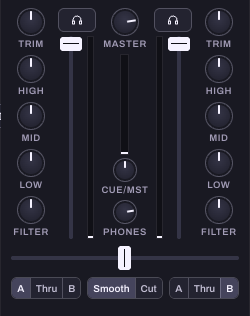
Two or four decks, each with eight hot cues, memory cues, loops from 1/64 to 512 beats, loop roll, beat jump, Sync, Master, Quantize, Slip, Vinyl, reverse, key lock, key shift and key sync, and a tempo fader. The mixer has trim, three-band EQ, a filter and a headphone cue per channel, two beat FX units with eight effects, a colour choice for the channel filter knobs, a crossfader, a sampler with sixteen slots in two banks, automix, stems from stem files on a deck, and a recorder. The library has playlists, smart playlists and tags. The Learn to DJ page lists everything, including what is not here yet.
The beat grid is wrong on a track
Press Grid on the deck. ÷2 and ×2 fix a tempo that was read at half or double speed, ◀ 5 ms and 5 ms ▶ move every beat line (1 ms with Shift), Bar +1 beat moves the downbeat, and Tap sets the tempo from four or more taps. The fix is kept with the track in this browser and a deck playing it follows at once. A track whose tempo changes partway keeps every change when its grid comes from rekordbox (stick or XML): the waveform marks each one, and One tempo in the Grid panel flattens it if you prefer. Hearhood's own analysis still finds one tempo per track.
Does key lock work everywhere?
Key lock and key shift need the full audio engine, which runs in current Chrome, Edge, Firefox and Safari. On a browser where that engine cannot load, Hearhood uses a reduced player without scratching, reverse, slip, key lock or recording; the buttons are not shown and the line above the decks says so. Key lock also rests by itself beyond 50 per cent faster or slower, while the platter is held, and in reverse, as it does on hardware.
I cannot hear a deck in my headphones
The headphone cue needs a second output. Press Output above the decks: Split cue puts the master in the left ear and the cue in the right on any stereo output, which works with a splitter cable or one ear of a headphone; 4 channels sends the master to outputs 1 and 2 and the headphones to 3 and 4 on a controller or sound card that has four outputs. Choose that device as the output device in the same panel, or make it the computer's sound output. The CUE buttons on the mixer do nothing in Speakers only.
Do my cues and playlists get back into rekordbox?
Yes. Library › Export the library as rekordbox XML writes a file with every track's beat grid, hot cues with their colours, memory cues, loops, rating, colour, label, comment and playlists, with playlist folders kept. In rekordbox, point Preferences › Advanced › rekordbox xml at that file and the collection appears under rekordbox xml in the tree. File paths in the export are relative to the folders you added, because a web page is not told where they are on the disk, so rekordbox may ask you to relocate them once. Nothing is ever written to a rekordbox USB stick.
Which keys work the decks?
Press ? in the DJ area, or Shortcuts in its top row, for the list: W and O play, Q and I cue, E and P sync, 1 to 4 and 7 to 0 are hot cues, R and U loop, Z X and N M beat jump, T and Y headphone cue, Shift+← and Shift+→ load the selected track. With four decks, 5 and 6 switch which deck each side's keys work.
Read choose your device and browser for phone, tablet and computer workflows, folder access, microphone and MIDI limits. The guide separates feature availability from tests on particular physical equipment.
For more detail, try the screenshot guides: get sound working, save and export music or browse all guides.