Start with the task, then choose the setup
Hearhood's layout adapts to the space available. A phone's compact controls and a computer's full workspace can serve different parts of the same project. Choose the task you want to complete, then check the controls and permissions that task needs.
This is a feature-availability guide for the current beta. Browser permissions, connected equipment and available storage still affect what your particular setup can do.
On a computer
Use the full DJ console and library when you need detailed cue preparation, multiple decks or folder access. Produce and Songwriter offer larger editing areas. Chrome or Edge is the practical starting point for folder access and MIDI equipment.
On a phone
Use the compact views for the controls provided there, short ideas and reviewing work. In Songwriter, the Share sheet includes a sound export. Keep the distinction between a listening file and an editable song file. A small screen is not the same interface as the full computer DJ console.
On a tablet
Use touch controls and the workspace that fits your task; orientation and width affect what is visible. Check that you can select and edit the intended part before starting a long session. For a workflow requiring a computer-specific folder or equipment feature, use the supported computer setup.
Files and folders
Add files copies selected DJ audio into this browser's storage. Add folder reads files in place and needs browser support for folder access. Hearhood's computer folder workflow is for Chrome and Edge. Other file-import routes can remain useful when folder access is unavailable.
MDN's directory-picker reference describes the browser feature behind this distinction. A folder permission does not copy all of that music into account sync. Keep the source files and check access again after moving folders or changing devices.
MIDI keyboards and controllers
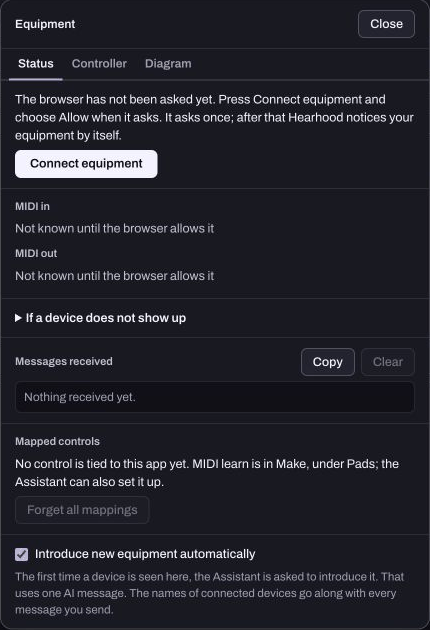
For Hearhood's equipment connection, start with Chrome or Edge on a computer. Connect the equipment, open Equipment, and check what the app reports. A physical USB connection alone does not establish browser access, a correct mapping or an audio-output route.
MDN's Web MIDI reference explains the permission-dependent browser capability. The MIDI keyboard guide separates editable note input from microphone recording.
Recording and sound output
Start sound with a click or tap. Turn on the microphone only for a recording task and check the selected input. A working microphone permission is different from a usable recording level or timing result. Use the recording guide and delay checks for that setup.
In DJ, Speakers only, Split cue and 4 channels are different output choices. A four-channel route requires suitable outputs. Do not assume a USB controller makes headphone cue audible automatically; follow headphone cueing.
Full audio engine and reduced player
Hearhood's full DJ audio engine provides key lock, key shift and other detailed playback controls. If that engine cannot load, the reduced player reports its limitation and hides unsupported controls. Read the message rather than looking for a switch that cannot work in that mode.
For pitch and tempo tasks, use speed, pitch and key lock. Start with one track before adding effects or more decks.
Offline work and moving devices
Installing the app can help previously cached creative tools open offline. It does not make accounts, community, AI, sharing or the course catalogue work offline. Open and check what you intend to use while you still have a connection.
Projects and recordings are kept in this browser. Account sync carries supported editable work, but excludes recorded takes and DJ audio files. Short-course progress stays local too. Before moving devices, keep exports that include the audio you need and inspect the destination before removing anything from the original.
A view from the app