Make a small DJ library easier to use
Tags describe tracks in your own words. A smart playlist uses rules to collect matching tracks automatically. Start with five files you are entitled to use, two useful tags and one simple rule. This guide uses the computer DJ layout; it does not connect a streaming service or upload your audio to a public catalogue.
1. Start with a small practice selection
Open Workspace › DJ and choose Add files. These files are copied into this browser's storage on this device. Add folder is a different workflow that points at a folder. Neither choice grants you permission to share someone else's music.
For our isolated test, we generated five short practice files at 100, 112, 120, 124 and 128 BPM. They are synthetic examples, not real member activity. You can follow with your own small set; your titles and tempo values will differ.
Let analysis finish. Check important tempo and grid information by listening; a number in a list is a useful starting point, not proof that every beat is aligned.
2. Give tags one clear meaning
Select a track in the list and open Info. Find Tags, separated by commas. Type a short label such as warm-up, then leave the field by clicking elsewhere or pressing Tab so the edit is committed.
In our example, the 120 and 124 BPM files get warm-up. The other three get steady. These labels are our listening plan, not an automatic musical judgement. Avoid making a different spelling for the same idea on every track. Two tags you will actually use are more helpful than twenty vague ones.
3. Try a combined search
In Search the library, type tag:warm-up bpm:120-128. This asks for tracks carrying the tag and falling inside that tempo range. In our test it returned the 120 and 124 BPM examples.

Clear the search afterwards. Also check the separate lowest-BPM, highest-BPM and key filters if a track seems to be missing. A filter can hide a row without deleting its file. Start from All tracks when checking what is actually in the library.
4. Save the selection as rules
Under SMART PLAYLISTS, press the plus button, labelled New smart playlist. Name it Warm-up 120 to 128. Set BPM from to 120, BPM to to 128, and Tags to warm-up. Leave unrelated rules empty, then choose Make the playlist.
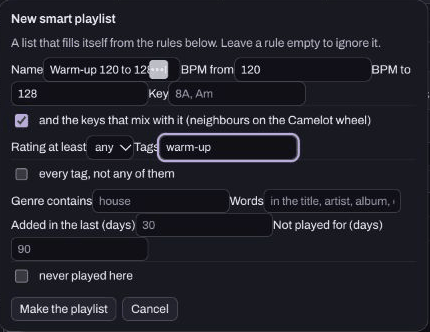
This is a rule-based view, not a fixed running order or a separate copy of the audio. An ordinary playlist is useful when you want to choose and arrange particular tracks manually. A smart playlist is useful when you want a selection to follow the information in the library.
5. Check that the rules do what you mean
Clear the search box, open the new smart playlist and check the rows. Our example contained two tracks. We changed the 120 BPM example's tag to steady; its smart-playlist membership disappeared and the count became one. Restoring warm-up brought it back. The tags and playlist were still there after reloading the isolated app.
Try the same reversible check on one of your own practice files. Restore the tag when finished. If the count surprises you, check the rule, the saved tag and any remaining search filters before changing more things.
Keep preparation and backup separate
Tags and rules do not replace the music files, rights information or a backup. Before moving a real library, use the rekordbox transfer guide and check what each export actually contains. A neat collection is useful when it helps you find one suitable next track, not when you have spent the whole session filing instead of practising.
Watch the short walkthrough
Watch the captioned 30-second walkthrough or download its captions. The video uses genuine captured app views and computer-generated narration. It is assembled from still views, rather than a continuous screen recording.
The same steps in text:
1. Give two practice tracks the same useful tag, such as warm-up. 2. Leave the Tags field so your edit is committed. 3. Combine a tag with a tempo range in the library search. 4. Use a smart playlist when you want rules to choose matching tracks. 5. Change one practice tag and check the playlist updates. 6. Keep the music files too. Playlist rules are not an audio backup.
Download the learning practice pack for the editable examples, original synthetic tracks and worksheets. Keep your own project backups separate.