Check your DJ controller with Hearhood
If you DJ already and want to know in twenty minutes whether Hearhood works with your controller, this is the test to run. It goes from plugging in to one real transition, and it ends with a report that tells the developer exactly what happened on your unit. Only one controller, the DDJ-GRV6, has been tried on real hardware so far; the other mappings are a starting point, and your run is what turns one of them into a checked one.
You need a computer with Chrome or Edge (Web MIDI does not work in Safari, Firefox or on a phone or tablet), your controller on a USB data cable straight into the computer, and a few of your own tracks. On Windows, install the maker's driver first; on a Mac most controllers need none. No account is needed for any of this.
1. Connect, and see what Hearhood sees (2 minutes)
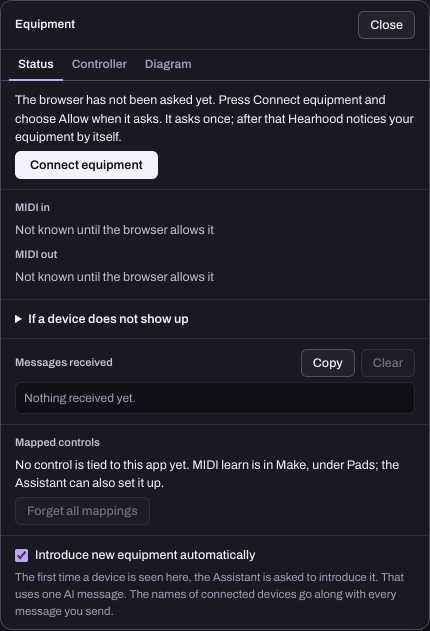
Open the DJ workspace. Press Equipment in the top bar. The Status tab lists every MIDI device the browser can see. If your controller is not there: check the cable is a data cable and not a charging one, that nothing else on the computer (rekordbox, Serato) has the controller open, and press Allow if the browser asks for MIDI permission.
Switch to the Controller tab. It names the mapping table Hearhood chose for your model and how sure it is. Note both; they go into the report. If it says "unknown", skip to step 6 and teach it first.
2. Run the Quick check (2 minutes)
On the Controller tab, press Start the quick check. It asks you to move a handful of controls one at a time: the tempo slider all the way and back, a knob each way, the jog wheel. This measures your unit itself: which way the tempo slider runs, how many steps one jog turn sends. If the tempo slider ends up backwards, the reverse it switch under the check fixes it.
3. Load two tracks and try every section (6 minutes)
Load a track on each deck from your controller's browse knob and load buttons. Then go through this list on deck 1, pressing each control once. Tick what works, write down what does not.
Transport
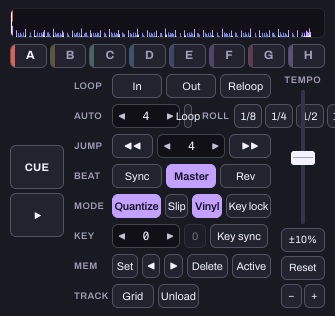
Play, CUE (hold it: the deck should play from the cue point and stop when you let go), SYNC, MASTER. Tap the top of the jog while the track plays: it should hold the track; turn the edge: it should nudge.
Tempo and key
Move the tempo slider: the BPM on the deck should follow. Press MASTER TEMPO or KEY LOCK: the key readout should stop moving when the slider moves. KEY SYNC if your unit has it.
Pads, one mode at a time
Hot cue mode: press pads 1 to 8 to set, press again to jump, Shift + pad to clear. Beat loop mode: each pad should start a loop of its size (1/4 to 32 beats); Shift with a pad is a loop roll while held. Beat jump mode: pads jump forward and back. Sampler mode: pads play the eight sounds of the sampler strip under the decks; Shift with a pad stops one. Key shift mode if you have it. Stems mode works only for a track that has stem files, and its pads need teaching once (step 6: d1.stem1 to stem4). Pad FX mode is expected to do nothing: Hearhood has no pad FX yet, and that is not a fault in your mapping.
Loops
IN, OUT, RELOOP/EXIT, the auto-loop knob or buttons for halving and doubling.
Mixer
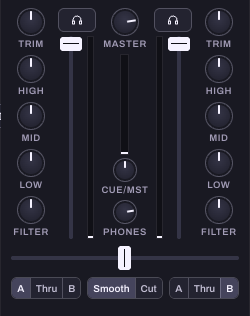
Trim, High, Mid, Low, the filter knob and the channel fader on channel 1, then the crossfader. Headphone CUE button on the channel, the Cue/Mst mix knob and the headphone level. The master knob.
Effects
FX ON, the beat selector, the depth or level knob and the effect select knob (its first eight positions choose Hearhood's eight effects on the first unit). Colour FX buttons are not mapped yet: choose the colour in the top row for now, and teach the buttons if you want them.
Browse
The browse knob scrolls the track list; pressing it opens or loads; LOAD left and right load the decks. DISCOVER is not in the table yet: teach it (step 6) and it opens Related for the track that is playing. DECK buttons on a four-channel unit should switch each side between decks 1 and 3, and 2 and 4.
4. Headphones (2 minutes)
If your controller has its own audio outputs, choose it as the output device: Output above the decks, then pick the controller in the device list and 4 channels. Press the headphone cue on a channel that is not in the mix. You should hear it in the headphones and not in the master. If the browser cannot choose an output device, make the controller the computer's sound output in the system settings and reload.
5. Mix one transition (5 minutes)
Do what you would do on a normal night: cue the second track on the headphones, sync or beatmatch it, bring it in with the channel fader or crossfader, EQ the bass across. Watch the live drawing of your controller under the decks: every knob and fader you move should move there too, with no lag you can feel. If a knob on screen waits with a dashed mark, that is pickup: the on-screen control waits until the hardware reaches its position, so the sound does not jump.
Write down two things: anything that felt wrong (latency, a jog that is too sensitive, a fader that jumps), and the one thing you missed most from the software you use now.
6. If a control does nothing: teach it (3 minutes)
On the Controller tab, press Teach your controller. It lights one control at a time in the drawing and waits for you to move it. You can stop at any point; what you taught is kept on this computer. For one control, open the mapping table under it: every control is listed with the message it is tied to (built in, from the family's list, or taught), and Learn or Change ties it to the next thing you press. Save mapping as a file writes the map to your downloads so you can send it with your report and get it back after clearing the browser.
7. Send the report (1 minute)
Two things, both from the app:
- On the Controller tab, press Start the controller check and go through it, or Check everything if you have the time. At the end, Copy report puts a text on the clipboard that says, control by control, what your unit sent.
- Press Feedback in the top bar, choose Something is broken or Something is missing, paste the report, add your notes from step 5, and leave Include technical details ticked. The details carry your controller's name, which mapping table was in use and how sure it was, your browser, and whether the full audio engine was running. Nothing you typed to the assistant, and none of your music, goes with it.
That is the whole test. A run that finds five broken buttons is more useful than one that says "fine"; the point is to know.