A DJ preparation story
Plenty of tracks. No idea what to play first.
A friend asks if you could play a few songs at a get-together. You like the idea, open your music folder and immediately start second-guessing everything. Which track starts? What follows it? What if you spend the whole time searching?
To prepare a DJ practice set in Hearhood, make a small playlist, choose a starting point for each track and rehearse the joins. The DJ workspace has playlists, a temporary Prepare list and hot cues that mark places you want to return to.
This walkthrough focuses on preparation before a performance. Start with a few tracks you know well and make the first two work together. You do not need a controller to practise with the on-screen controls and keyboard.
1. Start with a short practice plan
Choose three to five tracks for a first rehearsal. Think about the feeling you want: an easy opening, a little more movement, then a track you are looking forward to playing. You can change the order after listening.
Use music files you have permission to use. Add files lets you choose files from your device; Folder or Add folder can read a music folder. Hearhood is not a subscription catalogue of famous songs, and a streaming-service playlist is not a folder of audio files you can load into these decks.
There is another route if you have been making beats in Hearhood. Hearhood songs in the DJ library lists songs made in the app. Our screenshots use a small Produce song called Song 1, so there is no commercial recording in the example.
Use a computer for the two-deck layout shown here. This is a practice guide, not a public streaming or event-hosting feature. Preparing a playlist does not arrange permissions for a public performance.
2. Put the shortlist in its own playlist
In the library's left column, choose the + beside Playlists and enter a name such as “First practice set.” Press Enter to finish naming it. If the track list feels cramped, turn on Browse above the library. It gives the library more room while keeping the waveforms visible. Turn Browse off again before using the deck and mixer controls.
Go back to All tracks or Hearhood songs to find the tracks you want. On a computer, right-click a track, choose Add to a playlist, then choose your new playlist. Repeat for the rest of the shortlist.
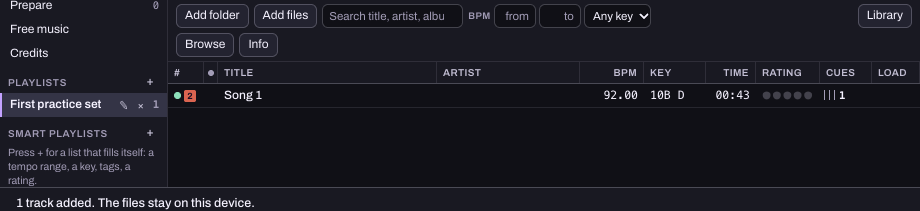
Open the playlist to check the tracks are there. A named playlist gives your rehearsal a home. Prepare is a separate scratch list for tracks you are considering; the track's right-click menu also offers Add to Prepare.
3. Load the opening track and find its starting point
Select a track in the list. The row shows load buttons 1 and 2; choose 1 to load the first deck. You can also use the keyboard shortcut shown by an empty deck: Shift with the left arrow for deck 1, or Shift with the right arrow for deck 2.
Songs made in Hearhood are rendered into audio when first loaded, so that first load can take a while. Wait until the track name and waveform appear before setting cues.
Listen from the beginning. For a first exercise, use the track's beginning as your starting point. Later, you might choose a clear beat after an intro. Stop playback at the position you want to mark.
4. Set a hot cue so you can return there
Press an unused hot cue button, such as A, beneath deck 1's track overview. It stores the current position. Once set, clicking that button jumps back to the saved point.
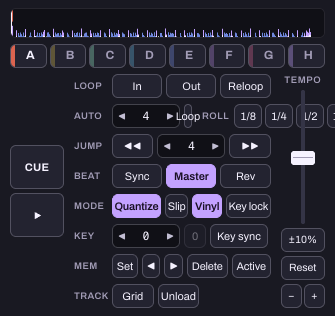
A hot cue is a bookmark inside the audio, not a change to the song itself. Give it a simple purpose you will remember: A for where you want to start, for example. You can use other cue buttons later when you have another place worth marking.
Listen as well as watching the display. A BPM number helps you compare pace, but it does not tell you whether two songs feel good together.
5. Rehearse one join before planning the whole set
Load your second track on deck 2. Practise bringing it in while the first plays, then stop and try that same join again. The first DJ transition guide walks through deck levels, the crossfader and a simple blend.
Keep a short note outside the app about what happened: “second track too loud,” “start it earlier” or “these vocals clash.” One observation gives the next attempt a purpose. Effects and extra decks can wait until you know what you want to improve.
If a pairing keeps feeling awkward, try another track. You are preparing a set, so changing your selection is part of the work.
6. Finish with a plan you can repeat
A useful first rehearsal ends with a shortlist, a known starting point and one transition you understand better. Add the third track after the first pair feels manageable.
Your library and preparation live in this browser on this device. Before clearing browser storage or moving computers, check the saving and export guide for the DJ library backup options. Keep your original music files too.
Come back to the same short set another day. Hearing it with fresh ears often makes the next decision much easier.