Mark places you will want to find again
A hot cue is a direct button for a saved place in a track. A memory cue is a saved marker you can move through with the previous and next arrows. In Hearhood's full computer DJ layout, those memory arrows go to the marker and wait there. Both help you prepare; they do not decide when a mix will work.
This exercise uses one track, three places and no controller. Choose music you are entitled to use. Our screenshots use an original synthetic 120 BPM beat, not a commercial song or a member's mix.
1. Write a reason for each marker
Before pressing buttons, listen and choose three places you would want to find again. On your own track these might be a clean beginning, a new section and a place to start leaving. Write a short reason beside each time. Do not call a point a vocal entry unless there is actually a vocal there.
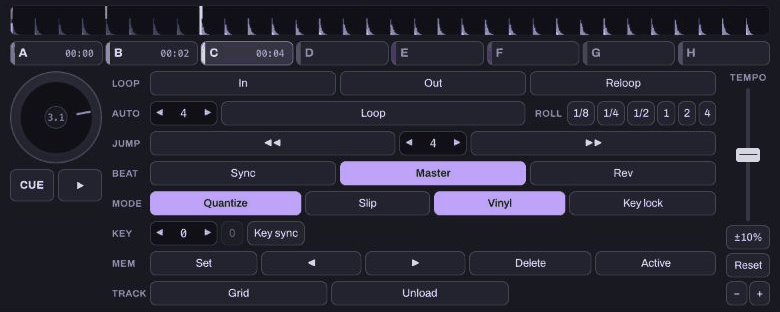
For a small control test, our eight-bar practice beat uses the first three bar starts: A at the displayed 00:00, B at 00:02 and C at 00:04. These are deliberately simple practice positions. They are not a recommended mixing plan for every song. Four beats at 120 BPM span two seconds; other tempos give different times.
If counting bars is new, start with beats and bars. A cue sheet needs to make sense to you, not look impressive.
2. Put hot cues on those places
Open Workspace › DJ, load your practice track onto deck 1 and pause. Keep ordinary looping off. Move to your chosen first position and press an empty hot cue A. Move to the next place and set B, then the third and set C. An occupied button goes to its saved point rather than replacing it.
In our test, a four-beat JUMP moved between those bar starts. You can first learn that control in cues, loops and beat jump. Check the displayed position and listen around a point before deciding to keep it. If Quantize is on, the app snaps the point to the analysed beat grid; an inaccurate grid can therefore put a marker somewhere you did not intend.
3. Know what a paused hot cue will do
Open Settings and find A hot cue on a paused deck plays only while held. With this gate setting on, a paused hot cue plays while held and stops when released. With it off, pressing the cue starts playback that continues. Check this before using a cue in front of other people.

We checked a released click with the gate on left the deck stopped, and a click with it off left playback running. We then paused and restored the gate setting. This is a computer control check, not a controller-pad or latency test.
4. Add memory points separately
Pause at a place you want to keep, leave looping off and press Set in the MEM row. Repeat at the other two places. The hot cues did not automatically create these memory points. Use the MEM arrows to visit the previous or next saved point and wait there.
There is an important difference when a loop is active: MEM Set saves that loop instead of a plain point. For this first exercise, keep the loop off and leave Active alone. An active saved loop is a later skill, not a requirement for three useful markers.
In our test, the memory arrows returned to the displayed two-second point. After a page reload and loading the track onto the deck again, the three hot cues and three memory markers were still present. A freshly reloaded deck can be empty; that does not mean its track's preparation was erased.
5. Keep preparation and audio together
Use Library › Export the library as rekordbox XML when you need that metadata format. We inspected the actual export and found all three hot cues and three memory points for the practice track. The grid began at 0.001 seconds, so the file kept points at 0.001, 2.001 and 4.001 while the interface rounded them. We did not import that file into another DJ program or test a club player.
XML contains library information and file references, not the music audio. Retain the original music files and use the backup and transfer guidance before relying on an export elsewhere. Your task is complete when you can explain each marker, return to it deliberately and find it again after reopening the track.
Watch the short walkthrough
Watch the captioned 30-second walkthrough or download its captions. The video uses genuine captured app views and computer-generated narration. It is assembled from still views, rather than a continuous screen recording.
The same steps in text:
1. Load one practice track, pause it, and leave looping off. 2. Choose three useful places, and write a reason for each. 3. Use empty hot cue buttons to keep those three places. 4. The gate setting changes what a paused hot cue does. 5. Memory Set keeps a point, or a loop when looping is active. 6. Reload and open the track again to check your preparation.
Download the learning practice pack for the editable examples, original synthetic tracks and worksheets. Keep your own project backups separate.