Find the music before rebuilding the library
If a track will not load but its cues or playlist entry are still visible, first check the connection to the music file. Do not clear browser storage or delete the library as your first repair. The preparation and the audio are different things.
This walkthrough covers Hearhood's computer DJ library. Folder access uses Chrome or Edge on a computer. Work with a small copied practice folder before reorganising your real collection.
1. Check what is actually unavailable
Reconnect an unplugged USB stick or external drive first. A track read from a stick that is simply unplugged can return when that stick is connected again. Check the browser's folder permission too. An empty filtered list is a different problem: clear the search and open All tracks before assuming the files are missing.
Add files copies audio into this browser's storage. Add folder reads a folder in place. Moving a source folder matters for the second workflow; deleting browser data matters for copied-in files. Account song sync does not carry DJ audio files.
2. Keep the preparation you still have
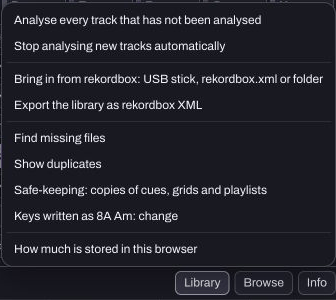
Open Library › Safe-keeping: copies of cues, grids and playlists. Choose Make a copy now. Save to a file makes an external file of the preparation: cues, loops, grids, ratings, comments and playlists. It does not contain the audio.
A saved safe-keeping point is useful for preparation changes. It cannot recreate an audio file that no longer exists. Keep the original music files and a separate copy of them before renaming or moving a real library.
3. Point Hearhood at the new location
Choose Library › Find missing files, then select the folder that now contains the music. Allow that folder to be read if the browser asks. Cancelling the picker is safe; it does not repair or delete anything.
Hearhood looks for matching filenames and checks file size where it can. The folder path can help distinguish candidates. This is not a musical-content comparison, so a matching name alone is not proof that you found the right recording. Avoid renaming or converting the audio during the same recovery attempt.
Read the result message. It reports how many missing tracks were found and how many remain. If nothing is connected, check the chosen folder, permission and original filenames before importing duplicates.
4. Verify one recovered track
Load a recovered track, check the title and duration, and listen near a familiar point. Visit a saved hot cue and inspect the beat grid. Open a playlist that should contain the track. A successful file connection should retain preparation; check it rather than relying only on a count.
For a practice drill, make a throwaway copy of a small audio folder, import that copy with Add folder, keep one cue and one playlist, move the copied folder, and reconnect it. Leave your original audio untouched. The cue guide explains a simple three-point check.
5. Restore preparation only when that is the problem
In Safe-keeping, Go back to this restores preparation from the chosen point. Tracks added since that point stay, and the app first keeps a copy of the current preparation. This is a library-metadata restore, not an audio recovery service.
Use a restore for an unwanted grid or playlist change, not as a substitute for reconnecting the right audio. Finish by reopening the track and checking one cue, one grid and one playlist again. Keep your backups until the destination works.