Start with one thing you want to try
Hearhood has different workspaces for making music, songwriting and DJ practice. You do not need to learn them all before you start. Choose the direction that fits what you want to do today. On a first visit, choose Make a beat, Work on a song or Practise DJ mixing in the starting panel. After that, Workspace lets you switch areas. The creative tools work without an account. AI guidance, account sync, creating song links and community participation need a free account.
If the idea is a tune you can hum, start in Songwriter. Choose an instrument, hum one short part and build around the notes it gives you.
I want to make a beat
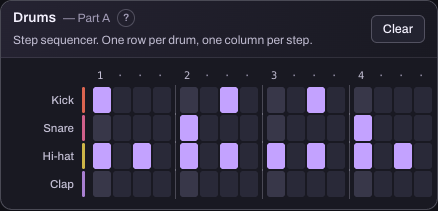
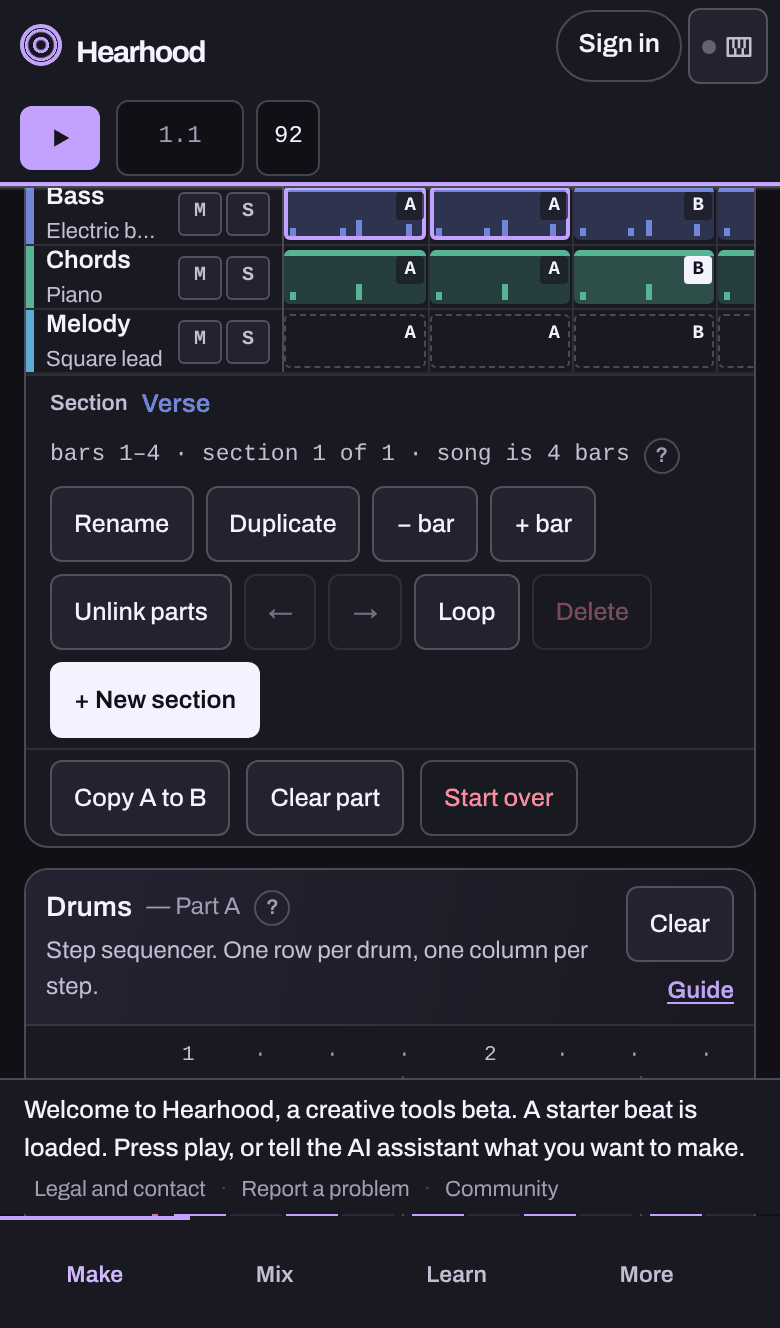
Open Produce. The Make area shows the Drums card: a step sequencer with one row per drum (Kick, Snare, Hi-hat, Clap) and one column per step. A short starter beat is already loaded, so you can press Play first and hear it. Press a square to switch a hit on or off. A repeating pattern gives you something to listen to while you try small changes. Add bass or a melody in the Notes card when you want another part, rather than filling every space at once.
- Explain this pattern and suggest one small change.
Open ProduceMake your first beat
I want to practise DJ mixing
Open DJ. Above the decks, Start here has three steps: connect a controller (or choose No controller), bring in your music, load two tracks. Use Add files to copy music files from your device into the library (or Add folder on Chrome and Edge on a computer, which reads a folder in place without copying). Then load a track onto a deck: drag it there, or select it in the list and press Shift+← for deck 1 or Shift+→ for deck 2. Get comfortable with Play and the track position before you load another track to explore bringing it in. Start with the on-screen controls; connecting a controller can come later if your device and browser support it.
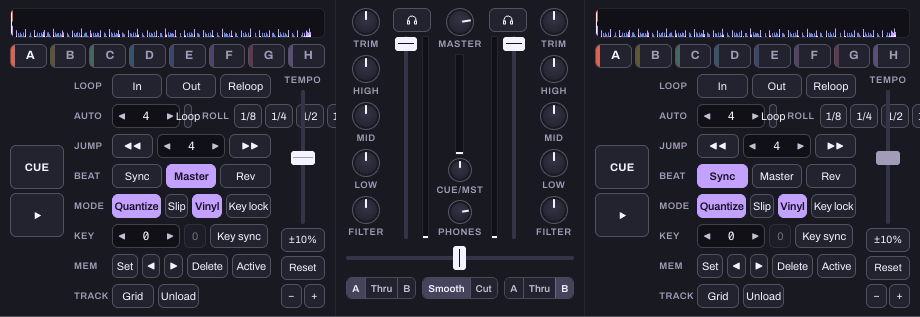
- Walk me through the CUE button and hot cues, one step at a time.
I have a song idea
Open Songwriter (the Studio) and start with the part you already have. The Studio offers three ways in: Hum a part, Start with drums or Start with chords, and you can also record your voice, open a song or MIDI file, or write in the Lyrics tab. Develop a short section before deciding on the whole arrangement. Humming and recording use the microphone; the browser asks for permission only when you press that button, never when the page loads. You can use everything else without recording your voice.
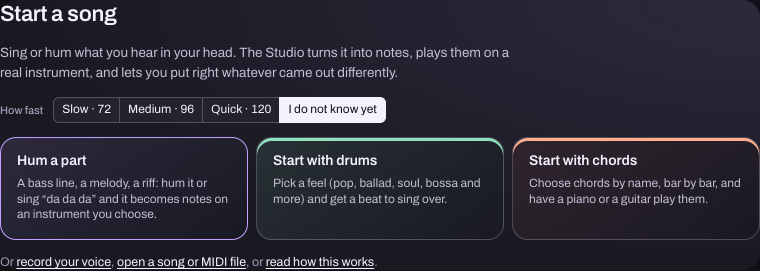
Choose Hum a part, pick an instrument and record a short, clear phrase. Listen back, fix any notes that need attention, then use Add chords and drums to build a backing. You can record your voice over it when you are ready.
- Help me choose one next step for this idea.
Open SongwriterSongwriting in Hearhood
Ask for the kind of help you want
'Explain this' asks for information. 'Suggest a change' asks for an option. 'Change this part' asks the assistant to act where supported. Say which part you mean and anything you want left alone. The assistant uses project information; it cannot listen to your audio. You can hear the result and decide whether it works. When it changes something, it lists what changed, and Undo under that reply puts the song back (for the newest change, in Make and the Studio; what happens on the decks is not undone).
The assistant needs an account or an invite code and is for people aged 18 or older (younger people join through a parent, with a parent-controlled account). The creative tools, local saving and export work without an account. Community posting, member pages, follows and direct messages need a free account.
Learn how to use the assistant
Keep a copy of your work
The current beta saves projects and recordings in your browser unless a feature says otherwise. A project backup and an exported audio file serve different purposes: one lets you keep editing, the other lets you listen outside the app.
- Produce: My songs › Backup › Back up everything keeps the Produce collection, versions and Produce recordings in a file you can import again; Download this song saves just the current one. My songs › Export › Export WAV (full quality) or Export MP3 (small, for sharing) makes a finished sound file; Export stems and MIDI (.zip) and Export MIDI are for carrying on in other music software.
- Large full backups can omit Studio takes. Use a Studio Song file with recordings or the complete migration export below, and check the result.
- Studio: the Export button offers a Song file (.flsong, everything editable, recordings optional), WAV, Stems and a MIDI file.
- DJ: Rec records the master mix to a WAV file on this device. The local library holds its cues and playlists; account sync can also carry cues and playlists, but not the music files. There is no editable timeline export for a DJ mix.
- Everything at once: My songs › Move my data to another address › Export everything makes one zip of songs, versions, recordings, the DJ library, Studio songs and settings, for another device or browser. Import everything only adds.
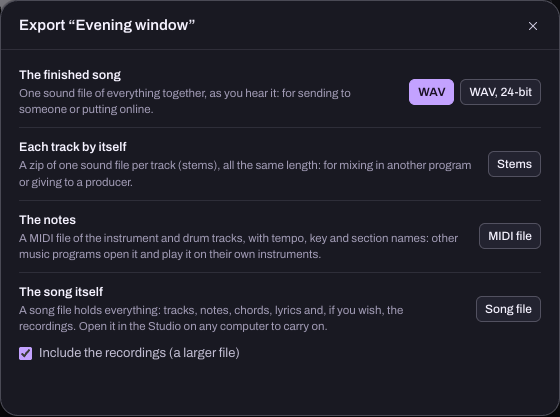
Check what your chosen export includes. Do not clear browser data until you have checked your backup.
Learn a small step, then share when you choose
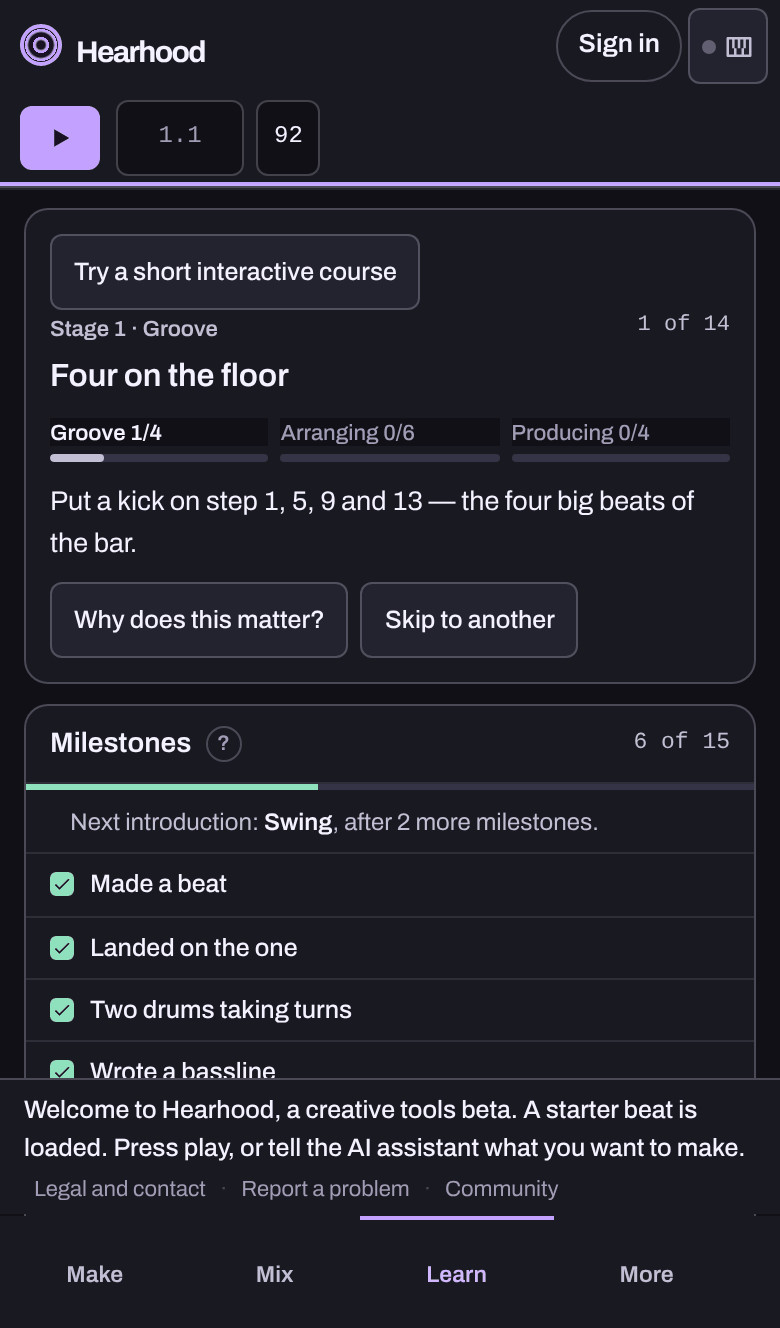
Open Short courses in the app for short interactive lessons with plain-English explanations, optional sound examples and one understanding check. Search by topic, filter by progress, or pick up your latest unfinished lesson. Course progress and practice notes stay in this browser and are separate from song projects.
When you want feedback, a free account lets you make a Produce song link and attach it to a community post. The link shares editable musical data without recorded takes. Studio WAV and song-file exports are a separate workflow. See sharing and remixing.
If nothing is making a sound
Press Play, check your device volume and confirm that your headphones or speakers are connected. In the DJ workspace a browser lets a page make sound only after a click or a key press on the page itself; if a panel says "Sound is waiting for one click", press Start sound. Make sure a track is loaded on the deck that is playing and that its channel fader and the crossfader let sound through. If it still does not work, press Feedback in the app's top bar and tell us your browser, device and the action that failed.