Hum a melody. Build it into your song.
You can start a song without knowing how to play the tune in your head. Hum a short phrase, choose an instrument and Hearhood turns it into notes you can edit. Add chords, drums and your own voice to build the song around it.
Start with a humFollow the walkthrough
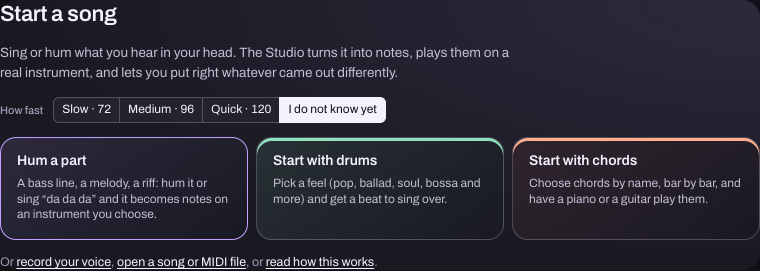
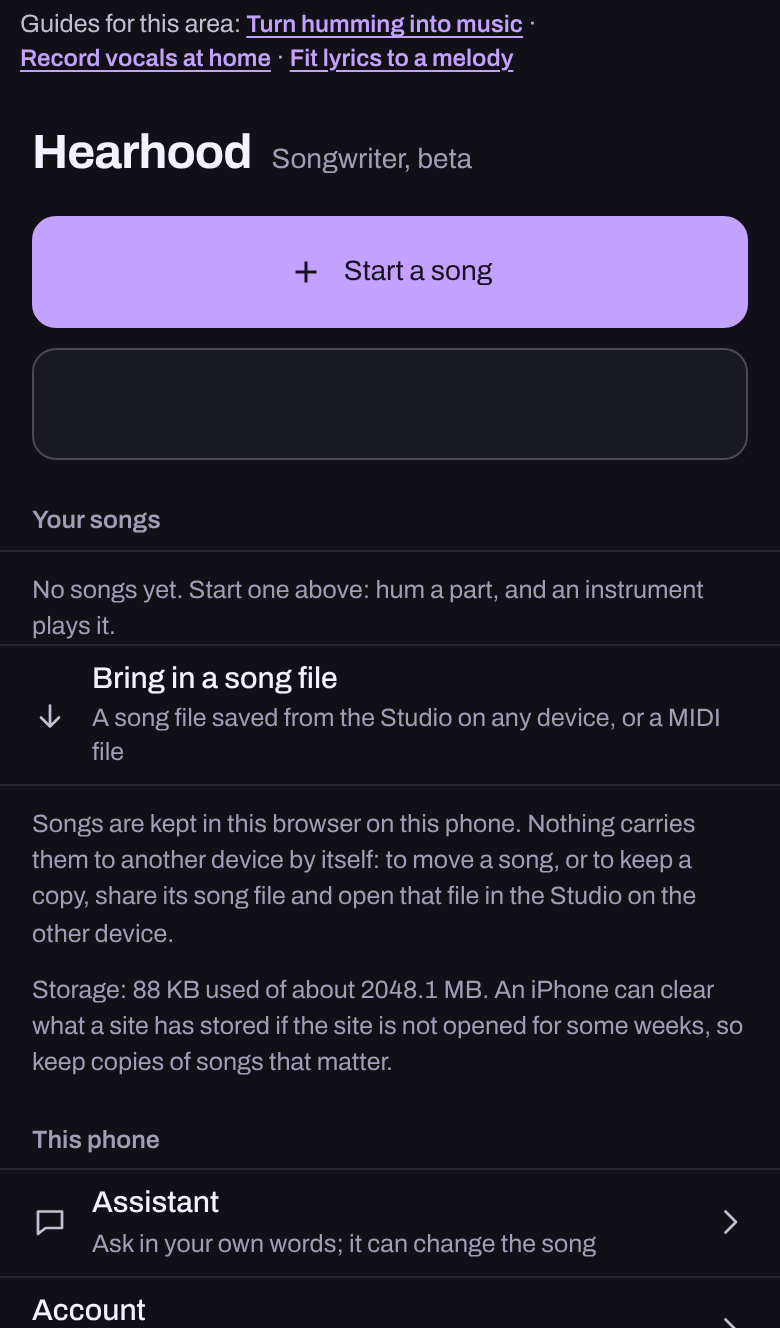
A melody, a lyric or a few chords can be enough to begin. Hearhood's Songwriter workspace, the Studio, gives you tools to develop the idea without planning the whole song in advance: hum a part and hear it on an instrument, build chords and drums, record your voice, write lyrics, and keep versions as you go. It runs in the browser, saves there, and needs no account.
Work on a short section
Try one musical part and listen before adding more. The Studio opens with three ways in: Hum a part, Start with drums and Start with chords; you can also open a song or MIDI file you already have. You might begin with a melody, find chords that support it, or write a lyric in the Lyrics tab over a rhythm. Use the tools for the way you prefer to work, one section at a time.
Capture a voice idea
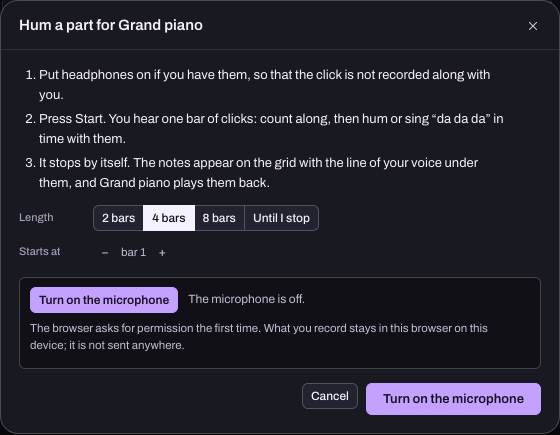
Hum a part turns humming or 'da da da' into notes on an instrument, and Record your voice keeps a take as audio. Both need the microphone: the browser asks for permission when you press the button, never when the page loads, and you can use everything else without recording your voice. Try a short phrase and inspect the result; pitch detection can need correction, so expect to move a note or two. Recording your voice does not mean that the assistant listened to it: the recording stays on your device, and the assistant only sees the notes and settings that came out of it.
Hear the same idea on another instrument
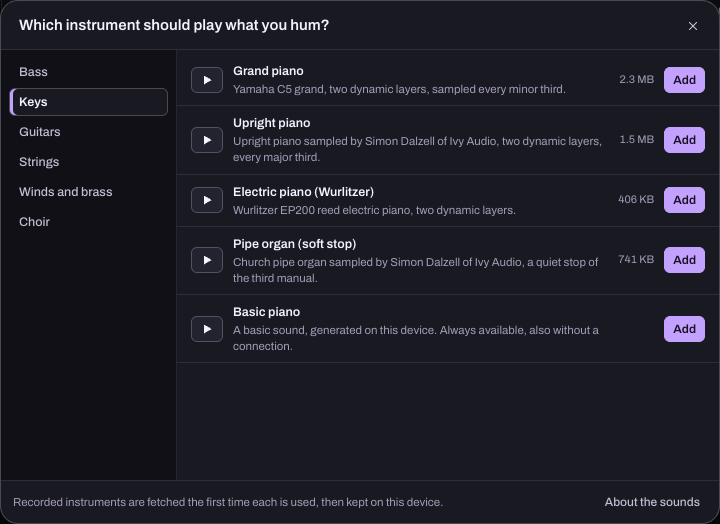
A hummed part becomes editable musical notes. Try a piano, bass, guitar or another available instrument to find a sound that suits it. You keep the tune and choose what plays it.
Build beyond the first phrase
Add chords and a drum feel, repeat a part or change it for a chorus, then record your voice over the backing. Your hum gives you a starting part; you shape the arrangement and performance as the song grows.
Build a backing from chordsWork on timing
Ask for a next step
Ask the assistant for options before changing the project and keep the parts you already like. It can set the tempo or key, suggest chords, add a track or open the Studio's sheets for you; Undo under its reply puts the song back.
- Explain what this chord does.
- Suggest a structure for a verse and chorus.
- Give me one next step for this idea.
Keep the song
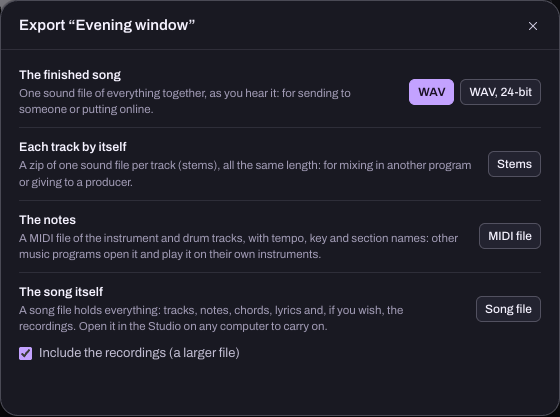
The Studio saves in this browser by itself; the chip in its bar says Saved. The Export button offers a Song file (.flsong) that holds everything, including the recordings if you tick that, and opens again in the Studio on any computer; WAV and WAV, 24-bit are the finished song; Stems is one file per track; MIDI file is the notes only. The song menu's Versions keeps earlier states.
Start from what you already have
If you can hum a tune but cannot play it, follow the melody capture walkthrough. If you know a few chord names, turn them into a backing part. When a chorus feels too high to sing, try moving the notes and chords together.
Stuck on a particular part?
If the words feel awkward when sung, compare lyric drafts over the same melody. If the first verse works but the next says the same thing, give verse two a new detail or decision. Both exercises use the Lyrics tab and original examples.
Start with the words you already have
Follow Start a song with lyrics and a beat to put a short draft in the Studio, add a backing beat and save the editable song. No microphone or AI access is needed for that exercise.
What do you already have?
- A few words: write a verse and chorus, then try the words over a beat.
- A melody in your head: capture a short hummed phrase and correct the notes that need it.
- A few chord names: make an editable backing part.
- A chorus that feels too high: try moving editable notes and chords.
Does typing lyrics create a vocal?
No. Lyrics are saved as text in the editable song. To hear your voice in an audio export, record a performance. Microphone access is needed for recording and humming, but you can write words and build instrumental parts without it.
Choosing a songwriting workflow?
Compare Hearhood with Suno for generation and hands-on musical decisions, or Hearhood with Soundtrap for a first exercise and shared production.