A melody-first story
Turn the tune in your head into a song
You are making coffee and a tune turns up. A few notes, a rhythm, maybe a word that keeps coming back. You can hear how it should go, but asking you to play it on a piano would be another matter.
In Hearhood, the Songwriter workspace has a Hum a part tool. You choose an instrument, hum or sing a short phrase into your microphone, and the tool attempts to turn it into editable notes for that instrument. You can work on the melody before deciding on lyrics, chords or a whole arrangement.
Start by capturing one recognisable phrase. Then use it as the first part of a song: choose its sound, add chords and drums, shape sections and record your voice. You decide how far to take it.
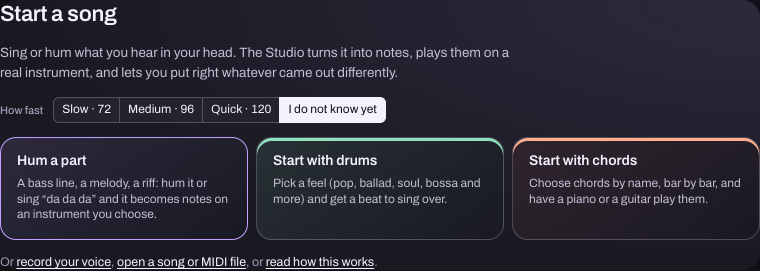
You need a microphone and must allow the browser to use it when you choose to record. Headphones help keep the backing sound out of the microphone. You do not need a keyboard, an account or access to the optional AI assistant. The screenshots show the setup before microphone access is enabled.
1. Keep the smallest version of the idea
Try humming just the part you would recognise tomorrow. Perhaps it is the last few notes of an imagined chorus. Repeat it once or twice so you know where it starts and ends.
If you cannot open Hearhood straight away, a quick voice memo can preserve the idea until you have time. For this exercise, you will hum the phrase directly into Hearhood when you are ready.
You can use a simple “da da da” sound. Words and a polished singing voice can wait. One clear melody is an easier starting point than trying to perform the tune, bass line and drums at once.
2. Open Songwriter and choose what plays the melody
Open Workspace › Songwriter. This area is also called the Studio. On a new, empty song, choose Hum a part in the Start a song panel. If you already have work open, save a song-file copy before starting another song from the song menu at the top left.
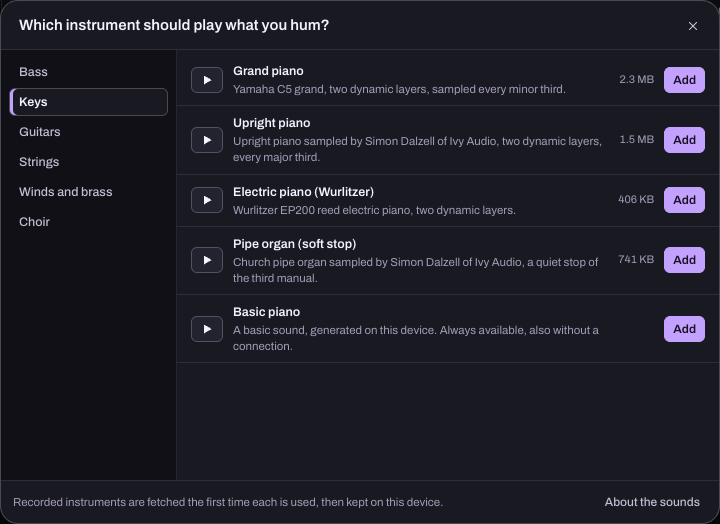
The instrument chooser opens first. Choose Keys, then Add beside Basic piano for a straightforward sound. You are choosing the sound that will play the notes, so it does not have to resemble your voice.
3. Choose a short recording or hum freely
The Hum a part window offers 2 bars, 4 bars, 8 bars and Until I stop. A bar is a small group of beats. Choose a short fixed length if you can repeat your phrase to a steady pulse.
With a fixed length, the instructions explain the count-in: you hear one bar of clicks before humming, then the recording stops itself. If the idea does not have a clear beat yet, Until I stop offers a free-time alternative without a count-in. You finish that recording yourself.
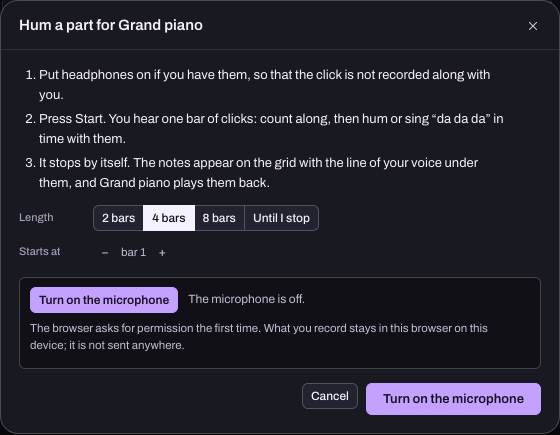
Choose Turn on the microphone when you are ready. Allow the browser's microphone request for Hearhood, then follow the recording controls shown in the window. Hum one phrase. Leave a little silence around it rather than talking through the take.
4. Listen for the idea you meant
The tool is designed to place the captured pitches as notes on the grid and play them with your chosen instrument. Treat the first result as a draft. Pitch detection can misread a wavering note, background sound or a breath.
Listen for the shape: does it rise where you imagined, pause in the right place and land on the note you remember? If a take is confusing, try a shorter phrase in a quieter space. You can also work on the notes in the Studio's Notes editor.
Do not judge the whole song from a plain piano sound. At this stage, recognising your idea is enough. The sound, backing and structure can change afterwards.
A repeatable first humming exercise
Try four clear sounds: “da, da, da, daa”. Let the first three rise slightly and hold the last one. You do not need to know the note names. Keep it short enough to repeat in roughly the same way.
After capture, compare three things: the number of note starts, the rising shape and the longer final note. If one held sound becomes several short notes, try a steadier vowel and less background sound. If the rhythm is recognisable but everything sounds too high or low, first compare the instrument's range before rewriting the tune.
Change only one note in Notes, then listen again. The note-timing guide separates moving a start from changing a note's length. If everything lands late by a similar amount, check microphone timing before adjusting each note by hand.
This is a listening exercise, not an accuracy score. Automated checks use generated singing with known notes; they do not establish how accurately the tool captures your voice in your room. A noisy or wavering phrase may need another take and manual correction.
5. Give the phrase somewhere to go
Once the melody feels recognisable, leave it alone for a moment. Add one supporting element, then listen again. The chords-to-backing-track guide shows how chord names can become an instrument part. If words arrive first instead, keep them in the Studio's Lyrics tab.
If the optional assistant is connected, a focused question could be:
- I have a short melody idea. Ask me about its mood before suggesting a backing part. Do not change anything yet.
The assistant cannot hear your audio. Describe what you like and what feels unfinished. The humming tool and the text assistant are separate features.
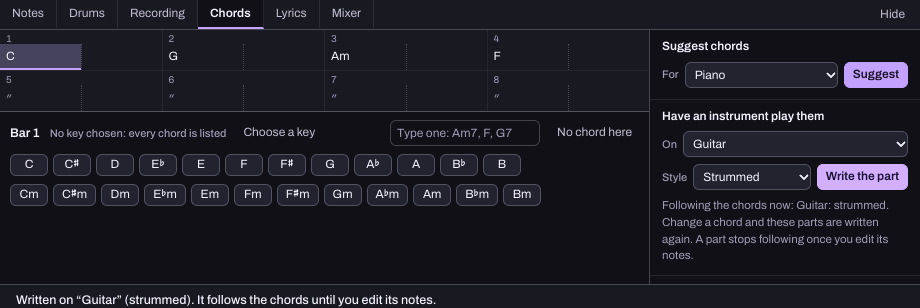
Use the Studio's Add chords and drums step to add a drum feel. Start quietly and keep the beat simple enough to hear the tune clearly.
6. Give your song a verse and a chorus
A finished song needs somewhere to go after the first phrase. Use + Section to label the timeline, for example Verse and Chorus. A section label helps organise the song; it does not create the music for you.
Repeat a musical part where you want familiarity, then change one thing for the chorus: the length of a note, the rhythm, the instrument or how busy the backing feels. Listen across the boundary so the new section feels connected. You can hum another part for a bass line or a second melody too.
7. Add words and your own voice
Keep lyric drafts in the Lyrics tab. When you want a vocal performance in the song, add or choose a voice track and record your voice over the backing. Use headphones so the backing does not spill into the microphone. Typed lyrics alone do not create a sung vocal.
You can also keep the song instrumental. The useful question is whether the arrangement carries the idea you started with.
8. Keep an editable copy before you leave
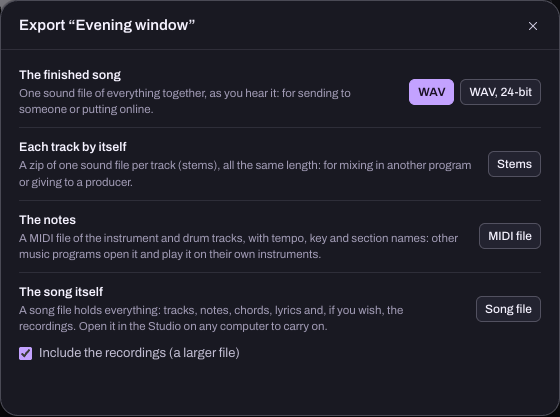
The Studio saves in this browser, and signed-in account sync can carry the editable song without its recorded takes. A separate file including recordings is still needed to carry the complete recorded project. Choose Export › Song file to preserve the editable song. If you have recordings you want to retain, check Include the recordings too. Choose WAV when you want audio to listen to outside the app.
A short phrase is a useful first session. As the song grows, keep a version you like before trying a bigger change. You do not have to finish every part in one sitting.