Save your music in a form you can use again
Before you close a good session, decide what you want to keep: a song you can edit, an audio file you can listen to, or everything you need to move to another browser. Hearhood has different exports for those jobs.
Projects and recordings save in your browser on this device. Signed-in account sync also keeps editable work: songs, versions, creative-tool milestones, Studio songs without recorded takes, and DJ cues and playlists. Recorded takes and DJ audio files are not included. The Saved indicator describes the browser save; it does not prove every recording is backed up online. Keep a separate exported copy including recordings before clearing site data or changing devices.
I want to keep editing a Produce song
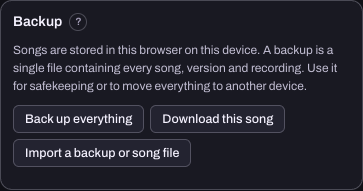
Open Workspace › Produce, then My songs in the top bar. Find the Backup card. Choose Download this song to keep the current song as an editable file. Choose Back up everything for the Produce collection, including its songs, versions and Produce recordings. Studio takes can be left out of a large full backup; use a Studio Song file with recordings or the complete migration export, and check the result.
When you return to Produce, Import a backup or song file opens those files. Keep the original in place while you check that your downloaded copy imports and contains the work you expected.
I want to keep editing a Studio song
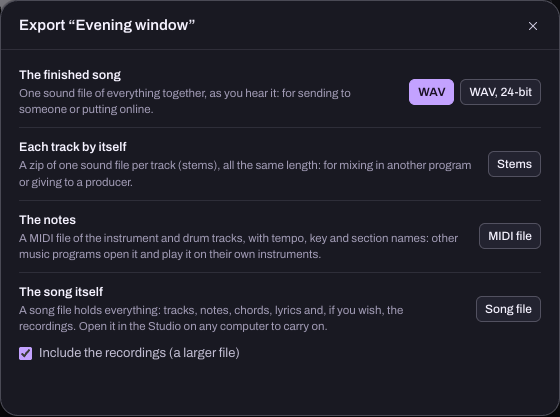
In Workspace › Songwriter, press Export and choose Song file. The file keeps the tracks, notes, chords and lyrics. If the song has recordings, leave Include the recordings selected when you want them in the backup. Including audio makes the file larger.
You can open a song file in the Studio on another computer. A file with notes but without the recordings cannot recreate the missing takes, so check that option before relying on the backup.
I want a file I can listen to or send someone
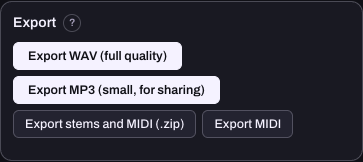
In Produce, open My songs and use Export WAV (full quality) for a full-quality mix, or Export MP3 (small, for sharing) for a smaller listening file. The Studio has Export › WAV on a computer; its phone Share sheet calls this The song as sound. MP3 export is currently in Produce, not in the Studio or DJ recorder.
WAV and MP3 are listening files. MP3 reduces file size using lossy compression; it is not a quality upgrade over WAV. Keep the editable project too if you need to change its separate parts later.
Keep an editable song file as well if you might want to change individual notes, instruments or lyrics later. A finished audio file does not retain those separate editing controls. Listen to the exported WAV before sending it so you know it contains the section and sounds you intended.
I want a link someone can play and remix
Produce song links are a different option from sending an audio file. Sign in to a free account, open My songs in Produce, and press Share next to a song. The app makes a link signed with your display name. Anyone with it can listen and open an editable copy in Hearhood; changing their copy does not change your original. The notes and supported settings travel, but recorded takes do not. This link is not a private backup.
Use Post it on your community page if you want to attach the song to a post. Shared links are listed on your member page by default; Account settings lets you hide a link from that page or take it down. Hiding the listing does not revoke the link. The sharing guide walks through the difference.
I want to carry parts into other music software
Stems are separate audio files for the tracks. They let someone adjust the balance of the parts without starting from one combined recording. Produce offers Export stems and MIDI (.zip); the Studio has a Stems button in its Export sheet.
A MIDI file carries notes and musical instructions, rather than the sound of the chosen instruments or your recorded voice. Another music program may play those notes with different instruments. Choose stems when the actual sound matters and MIDI when you want to keep working with the notes. You can keep both.
I want to move everything to another browser or address
Switch to Produce and open My songs › Move my data to another address. Choose Export everything. This move file covers more than a Produce backup: it includes Produce songs and versions, recordings, the DJ library, Studio songs and settings.
Open Hearhood in the destination browser or device, find the same card and choose Import everything. Check your songs and library there before removing anything from the original browser. Music read from a folder may still need access to its source files, so retain your music folder too.
I want to keep a DJ practice recording
In DJ, Rec records the master mix to a WAV file on this device. It is an audio recording of what you played. It is not an editable timeline of the transition or a backup of your whole DJ library. For the library and other app data, use the move file described above.
If you are unsure what the formats preserve, read audio, MIDI and project files explained before choosing a download.
Keep a comparison you can revisit
Compare two song versions with named Produce copies and separate editable exports. Duplicate creates a copy but leaves the original open; Bring back changes the current song. The walkthrough checks both distinctions.
A simple end-of-session habit
- Wait for the Saved indicator and keep the page open if it reports a problem.
- Download the editable song or backup you need.
- Find the downloaded file and give it a recognisable name with a date.
- If you need a listening copy, export a WAV too and play it back.
- Check a backup by importing it before deleting the original work.
If saving fails, export a copy while the page is still open and see help with saving. Avoid clearing storage as a first troubleshooting step: that storage may hold the only copy of your song.
Watch the short walkthrough
Watch the captioned 30-second walkthrough or download its captions. The video uses genuine captured app views and computer-generated narration. It is assembled from still views, rather than a continuous screen recording.
The same steps in text:
1. Open Produce, then My songs. Find the Backup card. 2. Choose Download this song to keep an editable project file. 3. Find the downloaded file and give it a clear name. 4. Export WAV separately when you need a listening copy. 5. A listening file does not keep all the separate editing controls. 6. Keep the original until you have checked the imported backup.
Download the learning practice pack for the editable examples, original synthetic tracks and worksheets. Keep your own project backups separate.