Make your first beat by changing one thing at a time
To make a first beat, choose a tempo, give the pattern a kick drum pulse, add a snare or clap, and place a few hi-hats between them. Listen to the loop before adding bass or melody. You can try the exercise below in Hearhood without an account.
You can begin with a short drum pattern. The aim of this first session is to make something you can hear, change and recognise again. You can decide later whether it becomes a song. Nothing in this guide needs an account.
Hear a simple four-bar beat
This original synthesized teaching example plays four bars in 4/4 at 100 BPM. Count four beats in each bar and listen for the snare on beats two and four. It illustrates the rhythm; it is not an export from Hearhood and its sounds will differ from the app.
Download: Four-bar drum beat at 100 BPM (WAV)
Open the rhythm tools
Open Produce. The Make area shows the Drums card: a step sequencer with one row per drum and one column per step. The rows are Kick, Snare, Hi-hat and Clap; the sixteen columns are the steps of one bar, numbered 1 to 4 at the start of each beat. Each square is a button. Press one to switch that drum on at that step; press it again to switch it off.
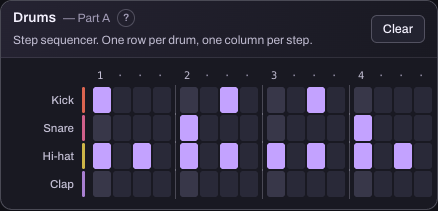
A short starter beat is already loaded on a first visit, so you are not looking at an empty grid. Press Play in the top bar to hear it, then change it, or press Clear on the card to start from nothing.
Give the pattern a pulse
Try a kick on each beat of the four-beat bar: switch on the Kick row at steps 1, 5, 9 and 13, the first square under each number. The kick is the low drum; a bar is a repeating group of beats. Press Play and let the pattern repeat. If you want it faster or slower, move the Tempo slider in the top bar. Tempo is measured in beats per minute, or BPM; the slider runs from 70 to 140. There is no required speed for this exercise.
Add a second sound
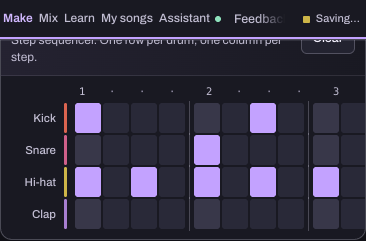
Try a Snare or Clap on beats two and four (steps 5 and 13). Listen to how it sits against the kick. Then add a few Hi-hat hits. The hi-hat is a short, higher sound that can help define the rhythm. These positions are a starting pattern, not a rule for how your music must work.
Change one thing and compare
Remove one kick, move one clap or leave a gap in the hats. Let the pattern repeat before making another change. Comparing small changes helps you hear what each one does. If the result feels less useful, press the square again to put the hit back. My songs › Version history keeps earlier copies of the notes and the arrangement every few minutes, and restoring one is itself undoable.
Try another musical part
When you want more than drums, open the Notes card beside the drums on a wide screen, or below them on a narrower screen and choose the Bass tab. Pitch runs bottom to top, time left to right, one note per step. Keep it short at first so you can hear the relationship between the parts; you do not need to fill every step. Chords and Melody are the other two tabs.
If you have the assistant connected, these are two things to ask:
- Explain the difference between the bass and melody in this workspace.
- Suggest a simple bass pattern without changing the drums.
A suggestion can remain advice. To apply a change, ask explicitly. When the assistant makes a supported song change, the reply lists what changed and Undo under it restores the previous state for that latest change.
Keep the version you want
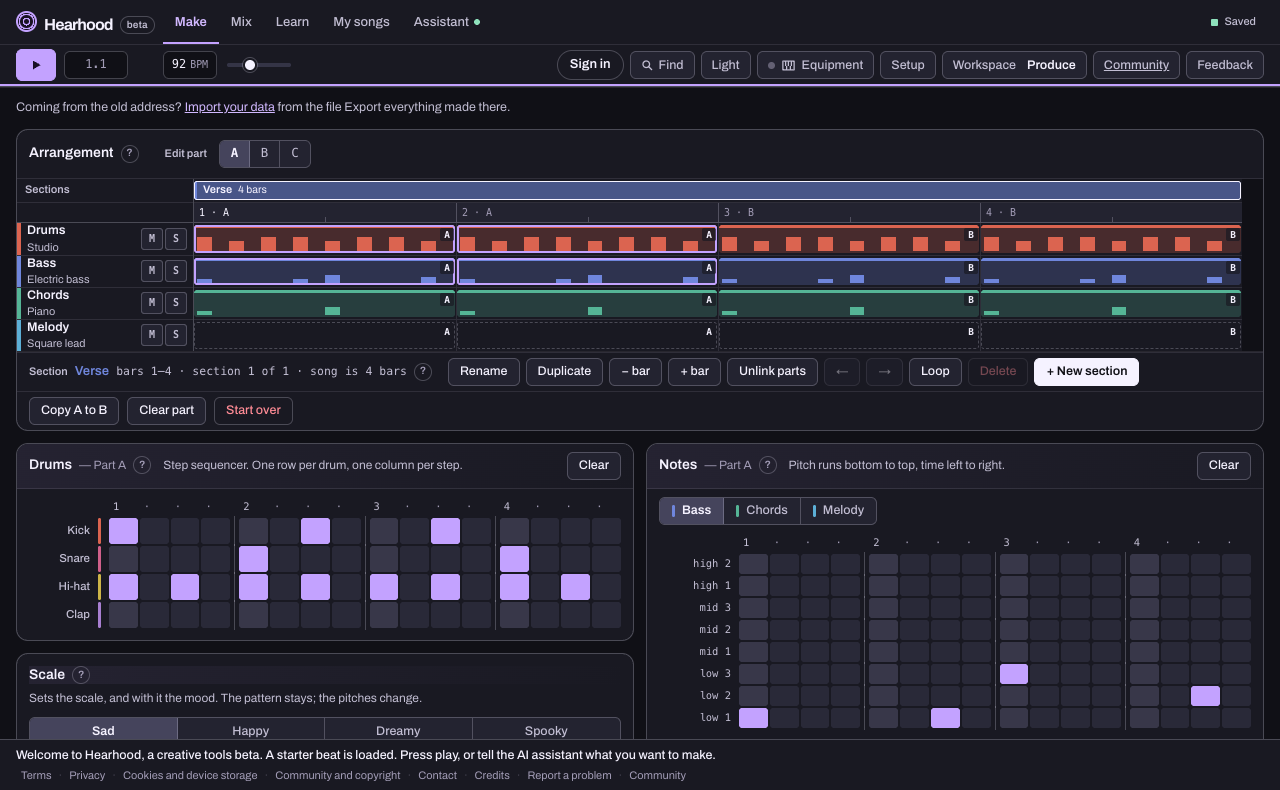
Produce saves by itself in this browser every time you change something; the Saved chip in the top bar shows the state. For a copy you can keep, open My songs: Backup › Back up everything saves Produce songs, versions and recordings as one file you can import again, and Export › Export WAV (full quality) or Export MP3 (small, for sharing) makes a finished sound file you can listen to anywhere. Those two serve different purposes. Before you finish, check where your work is stored and how to reopen it: the current beta stores projects in the browser unless a feature says otherwise.
Try next: change the rhythm without changing the tempo, or keep the rhythm and try a different sound (the Sounds card, further down the Make area). If you plan to clear browser data or switch devices, make a backup first.
Open ProduceHow to use the assistant
The pattern at a glance
- Kick: steps 1, 5, 9 and 13.
- Snare or clap: steps 5 and 13.
- Hi-hat: steps 1, 3, 5, 7, 9, 11, 13 and 15.
This is a starting point in a sixteen-step, four-beat bar, not a rule for every style. Keep one change per comparison. Remove one hi-hat and replay the loop, then put it back. Next, add a simple bass part or give the loop a second section.