A chords-first story
You know the chords. Let them carry the song.
You have been strumming the same sequence on a guitar: C, G, Am, F. A lyric starts to fit, but every time you stop playing to write it down, the backing stops too. You want something steady to sing over while you work.
Hearhood's Songwriter workspace can turn chord names into an editable instrument part. Enter a chord for each bar, choose an instrument and a playing style, then press Write the part. The chord labels alone do not make a sound; writing the part creates the notes that play them.
This worked example builds a simple guitar backing from four familiar chord names. You can follow it without playing an instrument yourself, then replace the chords with your own.
1. Open a fresh song and its Chords editor
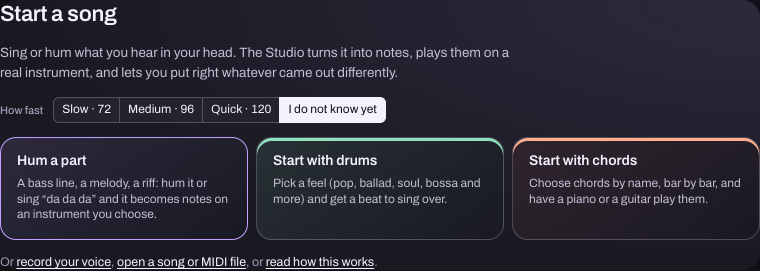
Choose Workspace › Songwriter, also called the Studio. On an empty song, Start with chords takes you towards the chord tools. You can also open Chords in the lower editor, or use Edit beside the timeline's Chords row.
If you are working in an existing song, export a Song file first so you have a separate editable copy before changing its harmony.
2. Put one chord in each of the first four bars
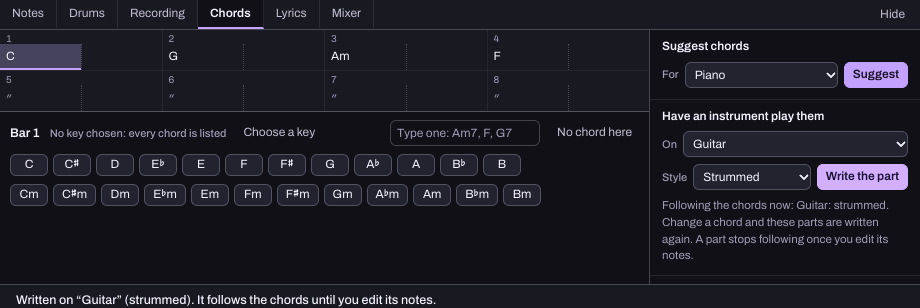
Select the first bar in the chord editor. Choose C, then G, then Am, then F. After choosing a chord, the editor moves to the next bar, so you can enter the sequence one chord at a time.
Here is what the first four bars should show:
- Bar 1: C
- Bar 2: G
- Bar 3: Am
- Bar 4: F
The m in Am means minor. You do not need to learn every chord before trying this example. Enter the four labels and listen to how they work together.
Look at the bars after your last entry too. A double-mark symbol means the previous chord carries on. In the screenshot, bars 5 onward keep F. The app has not automatically repeated C, G, Am, F. If you want that sequence twice, select bar 5 and enter C, G, Am, F again for bars 5 to 8.
3. Choose an instrument and write the part
In Have an instrument play them, open the On menu and choose A new guitar track. Set Style to Strummed, then choose Write the part.
A Guitar track appears with a region of notes on the timeline. Press Play in the toolbar to hear it. If this is your first use of the instrument, it may need a moment to load its sound.
If nothing plays, check that you pressed Write the part, that the track is not muted and that playback is running. The sound checklist covers the next checks in order.
4. Make room for your voice or instrument
Speak or sing a short phrase over the backing. If it feels rushed, lower the toolbar's BPM value a little and try again. BPM controls the pace of the song.
Keep the backing simple while you find the words. If the guitar competes with your idea, lower that track's level. A part can be useful without being the most interesting thing in the song.
Want to hear another chord? Change its bar in the Chords editor and listen again. The generated part follows chord changes until you manually edit its notes. Once you edit those notes, that part stops following automatically. Keep that distinction in mind if a later chord change seems to have no effect on the instrument.
5. Add the idea you wanted space for
Open Lyrics to keep a few lines alongside the music. Text in that box stays as text; it does not become a sung performance. If you already have a tune in mind, the melody capture guide explains Hum a part and the microphone setup.
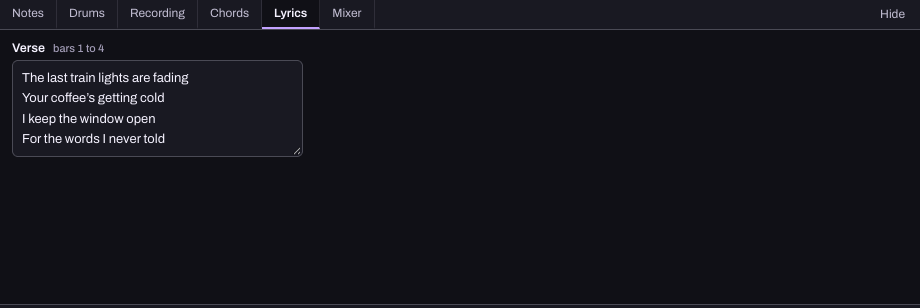
Try one short verse or a chorus phrase before adding drums, bass and more instruments. You are making a place to write. A useful backing can be four chords and enough breathing room.
If the optional assistant is connected, you could ask:
- I am writing over C, G, Am and F. Suggest one simpler backing idea that leaves room for the vocal. Explain it before changing anything.
You can complete this exercise without the assistant.
6. Save the version you want to practise with
Choose Export › Song file to keep the editable notes, chords and lyrics. Choose WAV for an audio backing you can listen to outside Hearhood. Your lyric text will not be audible unless you separately record a performance.
The useful result is a backing you can replay while writing, singing or trying another instrument. If the melody feels too high against it, the voice and key guide shows how to move the Studio's notes and chords together.