A rhythm practice story
The tune is clear in your head. The notes land in the wrong places.
You put a melody into a note grid, press play and barely recognise it. The pitches might be right, but one note arrives late and another stops before you expect it to. Moving everything at once only makes it harder to hear what changed.
In Hearhood's Songwriter note editor, left to right is time, up and down is pitch, and a note's width is its duration. Start by putting a short rhythm on one pitch. Adjust when the notes start, then their lengths, before adding the melody's rises and falls.
The aim is one recognisable phrase, not a complete song. This manual exercise needs no microphone, MIDI keyboard, account or AI access. MIDI here means editable instructions for an instrument, rather than a recording of your voice.
1. Tap the rhythm before choosing the notes
Take three or four notes from the idea. Hum them, then tap just their rhythm on a table. Keep the phrase small enough to repeat without having to remember the rest of the song.
Try a steady count underneath it. In a simple four-beat bar, count “one, two, three, four.” The tune can start between those counts or hold across them. Not every note needs to land on a numbered beat.
If you would rather capture your humming first, use the separate song-in-your-head guide. This exercise is for learning the grid by hand.
2. Open a simple instrument in Songwriter
Open Workspace › Songwriter. On a new song in the compact layout, choose Start a song. Press the round record/add-part button in the bottom transport, then choose An instrument to write notes on by hand. This opens instrument selection, not microphone recording.
Choose Keys, then Add beside Basic piano. Hearhood opens a four-bar note part. On a computer, use Add track to choose an instrument, then open its note part in Notes. If you already have a song open, keep a song-file copy before experimenting.
3. Put the rhythm on one pitch
In the compact editor, tap an empty point on the grid to add a note; tap an existing note to select it. On a computer, double-click empty grid space with the pointer to add a note. Add only a few notes along the same horizontal row for now.
The Snap menu controls the timing positions that notes land on when added or moved. Start with Snap: 1/8 for a simple exercise. This means half-beat positions in a four-quarter-note bar. A finer setting gives you more positions; it does not automatically know the rhythm you meant.
Press Play, listen to that short phrase and stop. Does the spacing resemble your tapping? Leave pitch alone until it does. You do not have to fill all four bars.
4. Fix the start before the length
Select a note. In the compact layout, Earlier and Later move its start; Shorter and Longer change its duration. If selecting is awkward, use Select before touching the note. On a computer, drag the note's body sideways to move it, or drag its right edge to change its length.
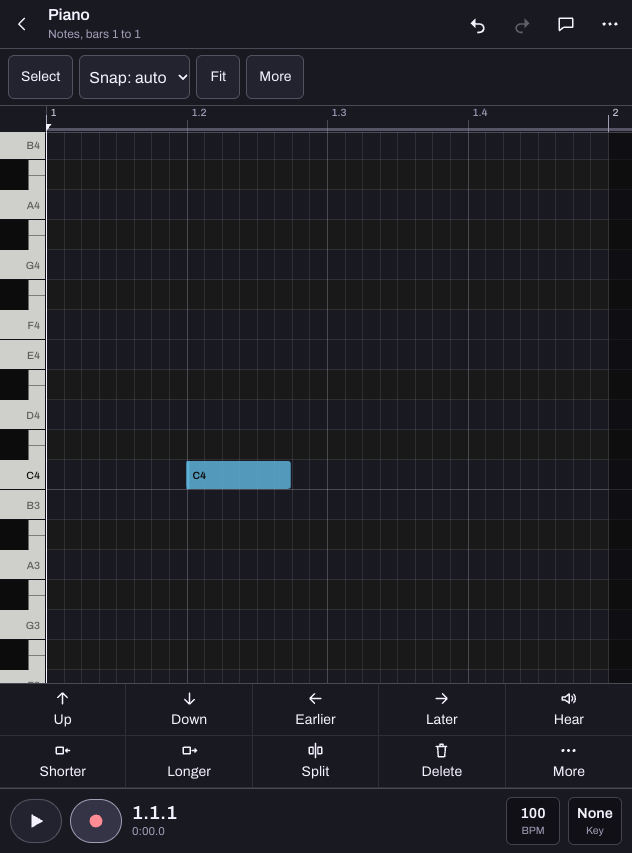
- It arrives late: move the note earlier, keeping its length for now.
- It starts correctly but ends too soon: make it longer.
- It sounds too high or low: that is pitch. Leave it for the next step.
- The whole phrase feels too fast: compare a slower song tempo before changing every note.
Note duration is how long the instrument is told to hold the note. Some sounds keep ringing afterwards, so the audible tail may last longer than the rectangle. A plain piano is useful here because you are practising timing rather than choosing the perfect sound.
5. Add the tune's shape
Once the rhythm feels close, move notes up or down to match the melody. The compact layout has Up and Down controls. On a computer, move the note vertically. Work on one note, replay, then continue.
If a change makes things worse, use Undo. If the rhythm needs positions between the current snap lines, choose a finer snap setting and make a small adjustment. Snapping everything to a grid can change a deliberately loose rhythm, so use your ears as well as the lines.
6. Keep the phrase and one observation
Save an editable song-file copy using the Studio's export/share controls. A browser save is local to this device. Signed-in account sync also keeps editable songs without their recorded takes, so export a copy including recordings when you need the complete project. The saving guide explains the available files.
Write one useful observation, such as “the third note needed to arrive earlier” or “the final note needed more space.” Next time, start with that phrase instead of a blank screen. Add drums or chords after the melody's timing feels recognisable.