Hear the next track before the audience does
Headphone cueing sends a track to a listening path so you can prepare it before bringing it into the main mix. In Hearhood, that needs both the channel's headphone button and a suitable choice under Output. Pressing the button alone does not create a second audio output.
This guide uses the DJ workspace on a computer. Start at a low listening level and use music you are entitled to play.
1. Separate the two kinds of cue
The deck's transport CUE button works with a playback position. The headphone cue button above a channel fader selects that channel for pre-listening. They have different jobs.
Keep the next track out of the main mix with its channel fader. Enable its headphone cue. You are preparing where it starts and checking the timing before you raise its level in the main mix.
2. Choose where the sound goes
Open Output above the decks. The choices describe the routing:
- Speakers only: stereo master sound. The headphone cue buttons do not send a separate cue signal.
- Split cue: master on the left, cue on the right. Both are mono, using one stereo output.
- 4 channels: stereo master on channels 1–2, stereo headphones on 3–4. The selected device must expose at least four output channels to the browser.
- Headphones on a second output: the master stays on the output you chose; the headphones go to a second device, for example Bluetooth headphones or a second sound card. Only Chrome and Edge on a computer can do this; Safari, iPhone and iPad cannot send sound to a second device, so there you need a cable or a sound card.
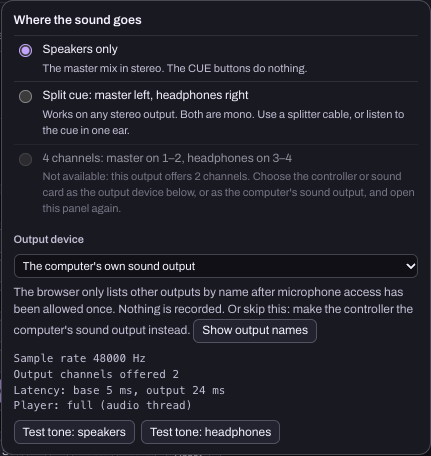
Split cue can let you practise the cue in one ear. To route it to separate speakers and headphones, use a suitable DJ mono-split cable and check its wiring. An ordinary headphone-sharing splitter duplicates the stereo signal; it does not separate left and right into master and cue destinations.
Bluetooth headphones and delay
Bluetooth headphones play late, usually by 120 to 250 milliseconds, and a browser cannot change that. Hearhood therefore delays the speakers by a time you set, so what you hear in the room lines up with the headphones. Under Headphones on a second output, choose the headphones' device, press Click test: both outputs and move Delay the speakers until the clicks land together; Use the browser's estimate is a starting point, not a measurement. Two things stay true with Bluetooth: the decks' pictures run with the headphones, so the speakers trail them by the delay you set, and the delay in the headphones themselves does not go away, so beat-matching by ear is harder than with a cable. For a gig, use a cable or a sound card; Bluetooth is for practising at home.
3. Check the output device
For a controller or audio interface with suitable outputs, select it under Output device, then reopen the panel to see how many channels it offers. A controller's MIDI buttons and knobs working does not establish that its audio outputs are correctly routed.
If the browser cannot choose an output from the page, select the device as the computer's sound output and reopen Hearhood. The panel explains the available route. Do not assume a plugged-in USB device exposes every hardware channel to the browser.
4. Test each path before mixing
Turn levels down first. In the Output panel, use Test tone: speakers, then Test tone: headphones. In Split cue the signals belong on different sides; with four channels they belong on their assigned output pairs.
If both go to the same place, stop and check the routing, cable and device selection. Do not turn everything up to look for a missing signal. A normal stereo output cannot provide two separate stereo mixes at once.
5. Balance cue and master in the headphones
The mixer has Cue/Mst and Phones. Cue/Mst blends the selected cue signal towards the master mix; Phones changes the headphone level. Start towards cue to find the next track, then bring in enough master to compare them.
Play a familiar track on the first deck. Keep the second out of the main mix while finding its start in headphones. When it is ready, practise bringing it in with the first transition exercise.
What was checked
The Output panel, split routing selection and output-control checks were checked in desktop Chrome on 24 October 2026. This guide does not claim a fresh physical test of a controller, splitter cable or headphone socket. Use the two test tones to verify your own setup. The controller checklist gives a fuller hardware test and explains how to report the result.