Your voice sounds late. Which delay are you hearing?
Microphone delay can mean two different things: you hear your own voice late while singing, or a saved recording plays behind the backing afterwards. First identify which one is happening. A timing adjustment for a recorded take does not remove the delay you hear while performing.
1. Listen to a short test
Record a short spoken phrase against a steady backing and play it back. Keep the song tempo unchanged. If the saved take lines up but hearing yourself felt delayed, investigate monitoring. If the take itself is consistently misplaced, investigate recording timing.
A single rushed word is not proof of a device delay. Try the same phrase more than once before correcting a whole recording.
2. Check how you are hearing yourself
Hearhood's desktop Songwriter does not monitor your live microphone through the app while recording. If you hear an electronic echo of your voice, check your interface's mixer, another open audio app or the computer's input-listening settings.
An interface with direct monitoring can route the microphone straight to its headphones, avoiding a trip through recording software. That feature belongs to the hardware. It is different from turning up the recorded track after the take.
Try wired headphones instead of Bluetooth while diagnosing the problem. Changing a microphone, headset or output can change timing, so keep the same setup for the test and the take.
3. Check timing in the recording setup
On a computer, open the recording setup for a Voice track, or Hum a part for an instrument track. Turn on the microphone. The setup has Check timing to measure the route used for recording.
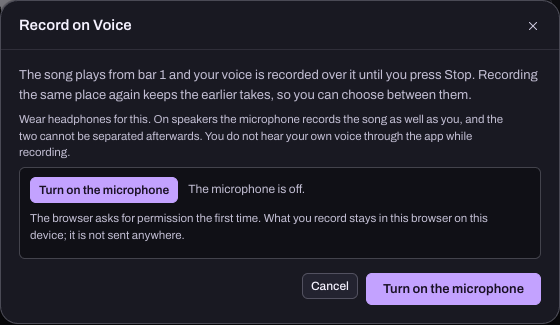
Follow the on-screen check: it plays eight clicks through the speakers so the microphone can hear them. Headphones must be taken off for this measurement. Use a modest speaker level, keep the room quiet and do not sing over the clicks. If they cannot be heard, the app explains that the measurement did not succeed. An estimate is not a successful measurement.
Afterwards, put the headphones back on for the actual take to prevent backing bleed. Recheck if you change the audio setup. Calibration helps place recordings; it does not make Bluetooth playback immediate or correct an uneven performance.
4. Record the same phrase again
Keep the tempo, backing and phrase unchanged. Record another take and compare it with the first. Listen for a consistent improvement across the phrase rather than judging one syllable.
If timing still varies, reduce the number of other apps using audio and try a simpler backing. For crackling or dropouts, note the browser, input, output and whether the problem happens during playback, recording or both. Do not keep adjusting timing to hide missing chunks of sound.
5. Keep your work and report the setup
Export a Song file including the recordings before moving to another device. Account sync does not carry recorded takes. If you need help, open Feedback and describe the steps, equipment and result. Avoid including a private recording unless you choose to share it.
References and limits
Focusrite explains direct monitoring and hearing a delayed duplicate signal. Their device instructions do not imply every microphone has that facility.
The Hearhood controls and automated timing paths were checked in desktop Chrome on 24 October 2026. No physical microphone round-trip time or Bluetooth device performance is claimed here. Run the actual check on your own setup.