Record your first vocal at home
A useful first vocal starts with a quiet space, the right microphone input and a short test you listen back to. You do not need to finish a whole song. Record one line over a simple backing, check it, then keep a version you can return to.
This walkthrough uses Hearhood's computer Songwriter layout. The creative tools work without an account. A voice track records actual audio; Hum a part attempts to turn a melody into instrument notes. Choose the one that matches what you want to keep.
1. Make the room and backing quieter
Close a noisy window and move away from fans or a hard, echoing corner. Try recording near curtains or soft furnishings. Use wired headphones so the microphone does not record the backing from your speakers. Start playback quietly and keep the backing simple enough to sing over.
For an original test line, try: “Leave a light on, I need somewhere to begin.” Say it at the loudest level you expect to sing. A speaking test at a whisper will not tell you whether a loud chorus overloads the input.
2. Add a track for your voice
Open Workspace › Songwriter. Save an editable copy of existing work before experimenting. Press Add a track, then choose Your voice. A Voice track holds recordings. Select it and press its recording control to open the setup.
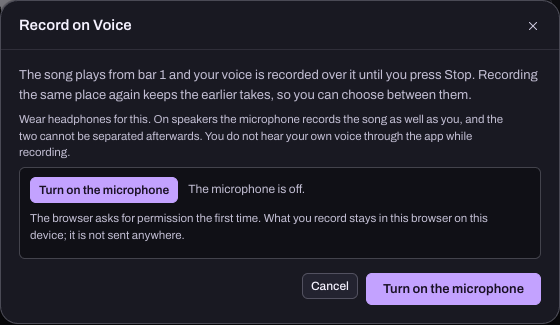
The recording starts at the bar containing the playhead. Put it at the bar where you want your line to begin before opening the recording setup.
3. Check the microphone before the take
Choose Turn on the microphone and allow access when the browser asks. Check the input selected in the browser or your computer's sound settings. Say your test line and watch the level move.
If the input overloads, lower the microphone or interface input gain, or move a little further away. A quieter playback fader cannot undo distortion already recorded at the input. If the take is very quiet, check the input and distance before simply boosting everything.
Hearhood does not play your live voice back through the app while recording. You can hear the backing in headphones. If your audio interface offers direct monitoring, its own controls may let you hear your voice too. Follow that device's instructions.
4. Record one line and listen back
When the microphone is ready, choose Record from bar with the displayed bar number. Wait through any count-in shown in the recording strip, then sing your line and press Stop. Listen to the take before recording a whole verse.
Ask three questions: can you understand the words, is the backing leaking into the take, and does the voice sound clean at its loudest point? Change one thing, then record again. Recording the same place keeps earlier takes so you can compare them in the recording editor.
If the recorded line seems consistently early or late, use the microphone timing guide. Do not move every note in the backing to compensate for a recording problem.
5. Keep both the recording and the song
Choose Export › Song file and include the recordings. Open the saved file to check it contains the take. Export a WAV as well when you want a listening copy. A file containing only notes and lyric text cannot recreate your sung voice.
Account sync does not include recorded takes. Keep a separate audio-inclusive song file even if you sign in.
Further reading and checks
Audacity's recording troubleshooting guidance explains input clipping and recording levels. Focusrite's direct monitoring explanation describes monitoring through an interface. These are general recording references, not controls that Hearhood adds to those devices.
The Hearhood setup and controls were checked on desktop Chrome on 24 October 2026. Automated recording checks use a generated test signal, not a human singer. Your microphone, room and interface need their own short listening test.