Turn one loop into a demo you can keep
A short demo needs a clear change and a useful saved result. In this exercise, make a four-bar Verse and a four-bar Chorus in Produce, then export a listening file and an editable backup. Our checked example uses 128 BPM and makes a 32.6-second WAV. It has no recorded vocals and does not need AI or an account.
1. Keep your starting point
Open Workspace › Produce. If you already have work open, go to My songs and choose Download this song before experimenting. Use Duplicate for a separate working copy, or New song for an empty project. Starting again is not the same as making a backup.
You can use any short beat you have made. If you need a first pattern, follow Make your first beat and return here. The example below starts from Hearhood's built-in starter, with our own arrangement change. It does not use someone else's recording.
Set the tempo to 128 for the example's timing. Keep the arrangement to four bars before copying the section. You do not need a vocal, melody and every possible layer before this counts as a demo.
2. Give the second section its own parts
In Make, select the four-bar Verse and press Duplicate. With the copy selected, use Rename to call it Chorus, then press Unlink parts.
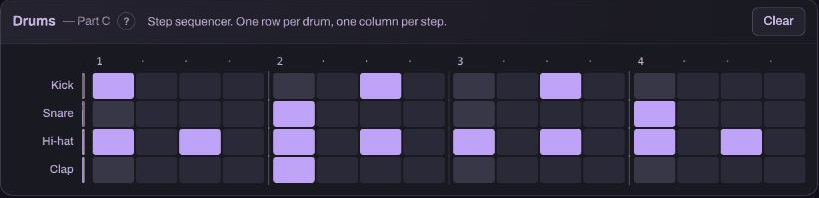
The letter labels show which pattern a bar uses. Our Verse keeps A and B, and the Chorus has C and D. Your letters may differ. The important point is that the copied section has independent parts before you edit them.

3. Make one small contrast
Choose the first part used by your Chorus. Add a clap on step 5, the start of beat 2. In our example that is part C, which appears in the first two Chorus bars. Part D keeps the earlier rhythm.
Now select the Verse's first part and check that the extra clap is absent. If both sections changed, undo the edit and check Unlink parts before trying again. A track mute affects the whole song, so it is not a shortcut for removing a sound from just one section.
4. Use three checkpoints
First, name the idea in My songs and download a song file before the arrangement change. Second, compare the same passage before and after your one edit, then download the version you prefer. Third, export a listening file and check the beginning, the section change and the ending.
Turn the section Loop off before checking the whole arrangement. Automatic version history is helpful, but it is separate from a file you keep outside the browser. Write one note about what you would try next, rather than adding five more changes now.
5. Check the file length you actually get
Choose My songs › Export WAV (full quality). Also keep Download this song for editing later. A WAV is the sound of the result; it does not replace the editable backup.
In the Produce version checked here, WAV export plays the arrangement twice and adds 2.6 seconds for effects to ring away. Eight bars of four beats at 128 BPM take 15 seconds per pass. Our exported file was therefore 32.6 seconds, rather than 15 seconds. Different tempo or bar counts change that result. This describes Produce's export, not every Songwriter or DJ recording workflow.
The exported example opened as a valid stereo 44.1 kHz, 16-bit WAV. The app also recognised its editable backup when imported again. These checks establish this practice export, not your microphone setup or every browser's performance.
You can change the result. The exercise is complete when you have one deliberate contrast, a checked listening file and an editable copy you can find again.
Download the practice example
Download the learning practice pack for the editable examples, original synthetic tracks and worksheets. Keep your own project backups separate. The first-demo-and-five-tracks folder contains the editable demo, its listening copy and the instructions. Read practice files and walkthroughs before importing.