Make a backing track for singing or guitar practice
A backing track gives you musical accompaniment to practise over. In Hearhood, you can enter chord names, choose an instrument and write an editable part, then save audio to play outside the app. The chord labels alone do not make sound: the instrument part is what plays them.
This route is for singers who want space to try a phrase and guitarists who want to practise against a simple accompaniment. It builds a backing from musical parts, rather than removing a singer from a commercial recording.
Follow the chord-to-backing walkthroughOpen Songwriter
Start with the practice task
Choose what you want to practise before building a full arrangement. For singing, it might be one comfortable phrase. For guitar, it might be playing a short idea over a repeated chord sequence. Write the goal in a sentence so you know what the backing needs to support.
A useful first backing can be plain. Start with one instrument part and hear whether it gives you enough information to stay with the phrase. More layers can wait.
Build from chord names
The worked example uses C, G, Am and F, one chord in each of four bars. In the Chords editor, choose an instrument and a playing style, then use Write the part to create the notes.
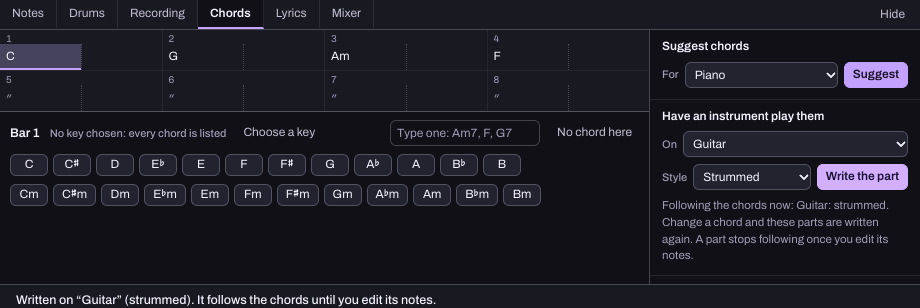
This reference example selects a new guitar track and a strummed style. It demonstrates accompaniment generated from chord labels, not a recording of someone physically playing a guitar.
Check the bars after your last entry. A carry-on mark continues the previous chord; it does not automatically repeat the whole four-chord sequence. Follow the walkthrough to enter the sequence again when you want another repetition.
Adjust the pace and space
For a phrase that feels rushed, try a slower BPM value and compare it with the earlier version. BPM controls the song’s pace. Lower the backing part’s level if it makes your own part hard to hear. These are listening choices, not targets everyone needs to set to the same number.
The Studio’s note-and-chord key controls can also help you compare a phrase in another key. Follow finding a key for your voice and check the result. Moving editable notes and chords does not mean every existing audio recording is automatically moved with them.
Compare two practice versions
Keep one version before changing the backing. For example, version A can use your first tempo and version B a slower tempo. Try the same short phrase against both and note which version makes the task easier to follow.
This comparison is a suggested exercise, not a tested teaching programme or an assessment of vocal or guitar technique. Stop if playing or singing is uncomfortable; this page does not provide physical technique instruction.
Keep the backing editable
Generated parts follow chord changes until their notes are manually edited; after that, the edited part no longer follows automatically. If a chord change seems to have no effect, check whether the part’s notes were edited. Keep a project copy before experimenting.
You can build the backing without the optional AI assistant. Typed lyrics remain text unless you separately record a performance; they will not become audible singing just because they appear beside the chords.
Export for listening and save for editing
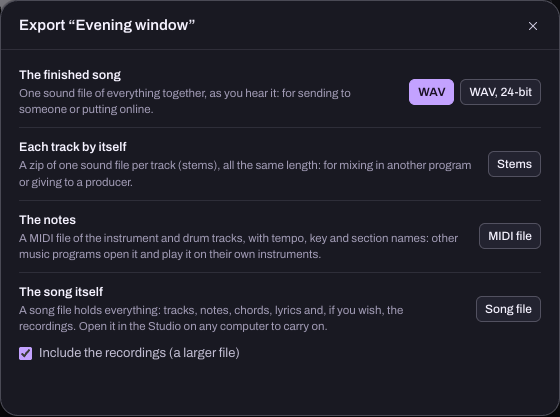
Use a Studio WAV export for the audio backing and a Song file for the editable project. If the project includes recorded takes, check the recordings option and the saved file. The saving guide explains the differences and backup limits.
Keep both when you need them: the audio is convenient for practice, while the project lets you adjust the arrangement later. Do not assume a listening file contains editable chords and tracks.
Common questions
Do I need to record an instrument first? No recording is required for the chord-label route. The app creates an editable instrument part from the choices in the chord tools.
Is this a vocal-removal tool? This page describes making a new backing from musical parts. It does not describe extracting accompaniment from an existing commercial song.
Can I use it without an account? The creative tools and local exports work without an account. AI guidance, account sync and community sharing have separate requirements.
Does exporting clear all music rights? Exporting a file does not grant rights to any third-party material you use. See the permission and credit guide before sharing material that includes other people’s work.
About this page
Prepared for Hearhood by Scopra with AI assistance, using the existing chord, key and export walkthroughs as feature references. The suggested comparison is not a report of a lesson tested with learners. See about Hearhood.