Know what your account does before you share
You can make music, save locally and export files without an account. A free account adds optional AI access, supported song sync, Produce song links and community participation. It does not introduce a subscription or artist payouts.
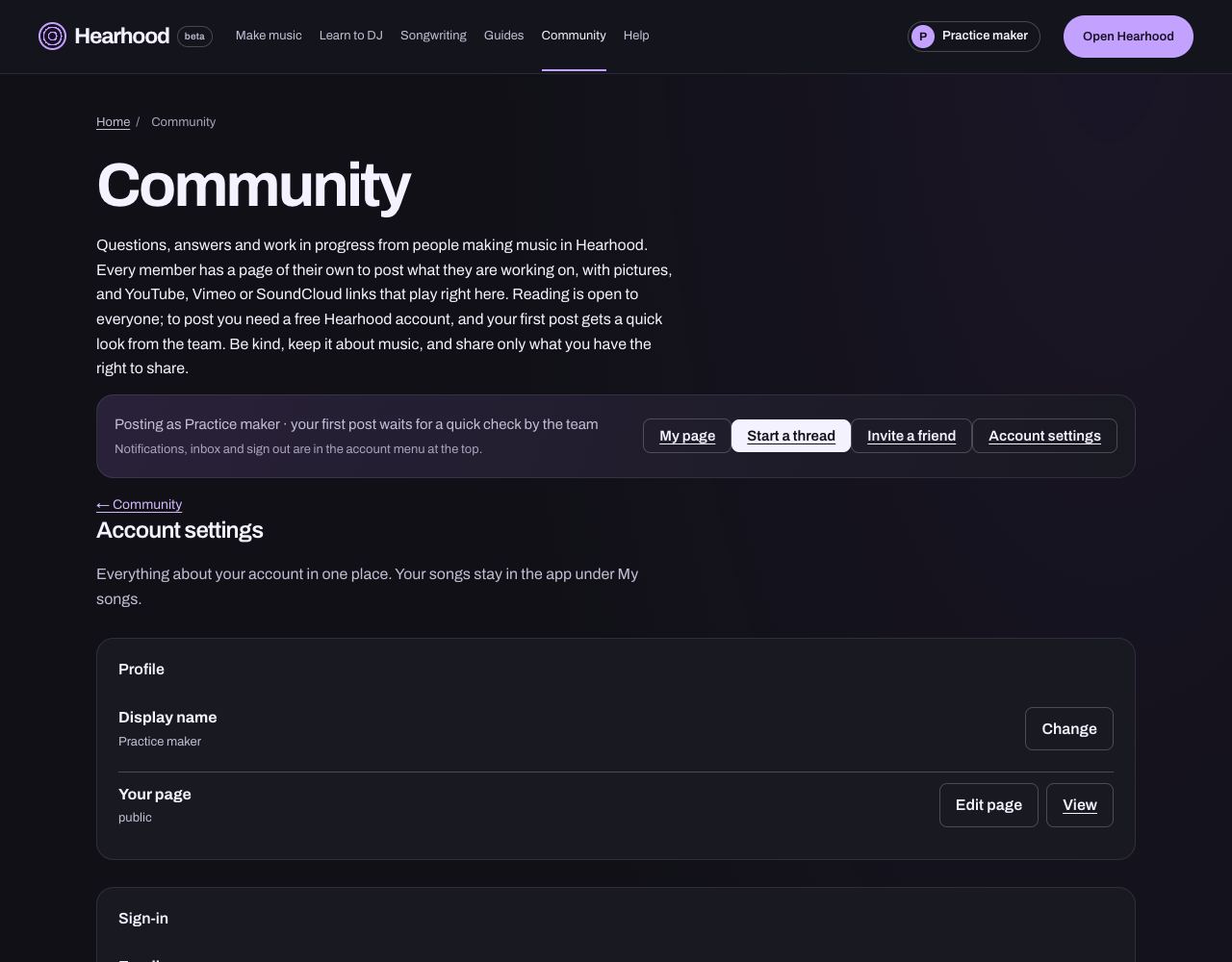
Find the same settings from every page
Open the account menu and choose Account settings. The app and public pages lead to the same settings page. There you can manage your profile and display name, password, weekly-email preference and shared song links, or download account data. Inside the app, My account in the app keeps the app-specific allowance, sync and local-data controls.
If you register using an email and password, follow the welcome email's link to confirm the address and finish signing in. Google sign-in confirms through its own flow. Do not share an invite code, sign-in link or owner link in a public post.
Sync helps, but recordings still need their own backup
Supported editable songs, versions and DJ cues and playlists can sync to your account. Recorded takes and DJ audio files are excluded. The app checks for changed work periodically and when it goes out of view; check for a successful account copy before relying on another device.
Short-course progress and practice notes stay in this browser. They are separate from song sync. Use an exported backup including recordings when you need the complete project. Downloading account data is not the same as exporting your songs.
Find the conversation you need
The Community has sections for making music, DJ practice, songwriting, help and showing work. Search can find matching threads, replies and members. You can read public posts without an account. Sign in to post, reply, like, follow or exchange messages. Your first post may wait for a team check.
When asking for feedback, describe one thing you tried and one thing you want help with. A playable song card can attach one of your own Produce song links. It carries notes and supported settings, not recorded takes. Sharing and remixing explains the limits.
Manage your member page and contact
Your member page can show the Produce songs you shared. The song's play and remix counts describe activity, not unique fans, royalties or earnings. In Account settings, hiding a shared song from your page leaves its link usable; taking it down makes the link unavailable.
Use Block on a member page to hide the two members from each other inside the community, remove follows and stop messages both ways. Use Report for content the team needs to review. Blocking does not revoke song copies or links someone already has.
Choose notifications per device
Account settings has the notification controls supported by your browser. Device notifications are optional and need browser permission; switching them on is separate from the weekly email preference. On iPhone or iPad, add Hearhood to the Home Screen first and use the installed copy. If the page says notifications are unavailable, do not assume the feature is enabled on the service or your device. The device notice is a generic prompt to check Hearhood; it does not include a message or song text.
Invite someone without promising money
Invite a friend gives you a personal link. The page shows the current AI-message bonus and limit. Eligible confirmed accounts can earn the allowance for both people; simply opening the link or starting an unconfirmed registration is not enough. The reward is messages for optional AI, not cash, a subscription or artist earnings.
A quick check you can do now
Find Account settings, inspect your shared-link listing if you have one, and locate the community search. Check the app's last successful account copy, then keep an editable export with any recordings. You do not need to change a preference, create a public post or invite someone to complete this check.