Add a third deck without losing track of the mix
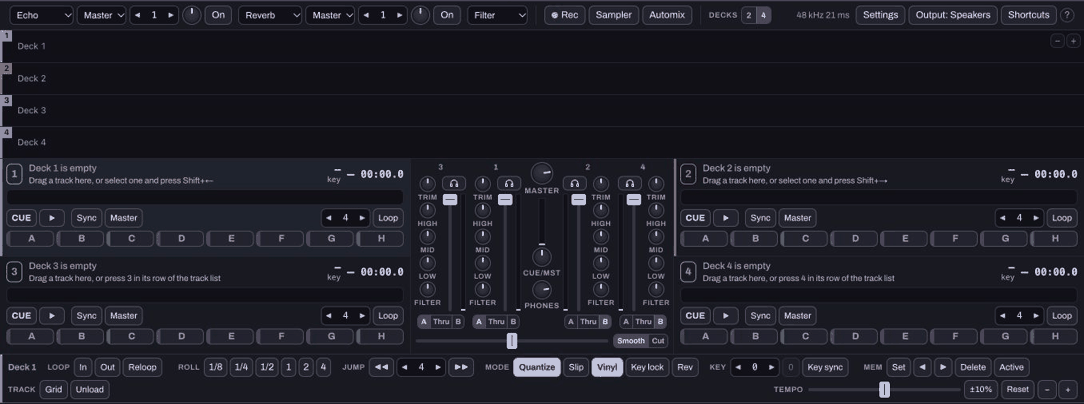
Hearhood's full DJ layout can use two or four decks. Four decks give you more places to prepare audio, but they do not require four tracks to be audible at once. Start by controlling two decks reliably before adding another layer.
Keep the screen and the sound separate
On a computer, choose the top-row Decks setting for four. When the window only has room for two deck panels, the interface offers switches between decks 1 and 3 and between 2 and 4. A deck can keep playing while its panel is out of view.
Before touching Play, identify the deck number and its mixer channel. The phone listening layout does not provide this four-deck mixing workflow.
Check how every channel reaches the output
Each channel has its own level, cue and crossfader assignment. A, Thru and B determine whether the crossfader affects that channel. A deck assigned Thru can remain audible while you move the crossfader to either side.
Set unused channel levels down while learning. Watch the master meter as well as the individual channels; adding another sound can raise the combined level even when each track looked comfortable alone.
Practise one extra layer
Play your main track on deck 1. Prepare a short compatible passage on deck 3 with its channel down. Cue it through a supported headphone setup, then raise that channel briefly and lower it again. Leave the other decks alone.
Listen for whether the extra layer adds something useful or hides the main idea. Save a cue for the passage if you want to try again.
Be careful with shortcuts and controllers
With four decks, the keyboard shortcuts can follow the selected side. Use the visible deck numbers and the shortcut help instead of assuming a key still targets the panel you used earlier. Controller mappings also need checking on your own device.
The controller test and headphone setup help you verify those pieces separately. Four-deck availability does not establish that a particular controller has four independent audio outputs.