Upload a recording you have permission to share
A music upload is a finished audio file that other people can listen to when it is publicly listed. For an ordinary member, a successful upload is immediately publicly listed; there is no separate private review followed by a Publish confirmation. It is different from an editable Hearhood song project. Uploading a recording does not automatically give listeners its notes, instrument settings or separate production tracks.
This guide describes the upload workflow for a release with member uploads enabled. If you cannot see that workflow, do not assume your account is broken. Check the current Help information for availability.
1. Check the recording and permission
Listen to the file from beginning to end before uploading it. Make sure it is the version you intend to share. Use a recording you own or have permission to upload, including permission for any samples and other contributions. Buying or streaming someone else’s song is not itself permission to publish that recording.
The upload form asks you to confirm your rights. That confirmation should reflect the actual permissions you have. It cannot create rights you do not already hold.
2. Choose the file and describe it clearly
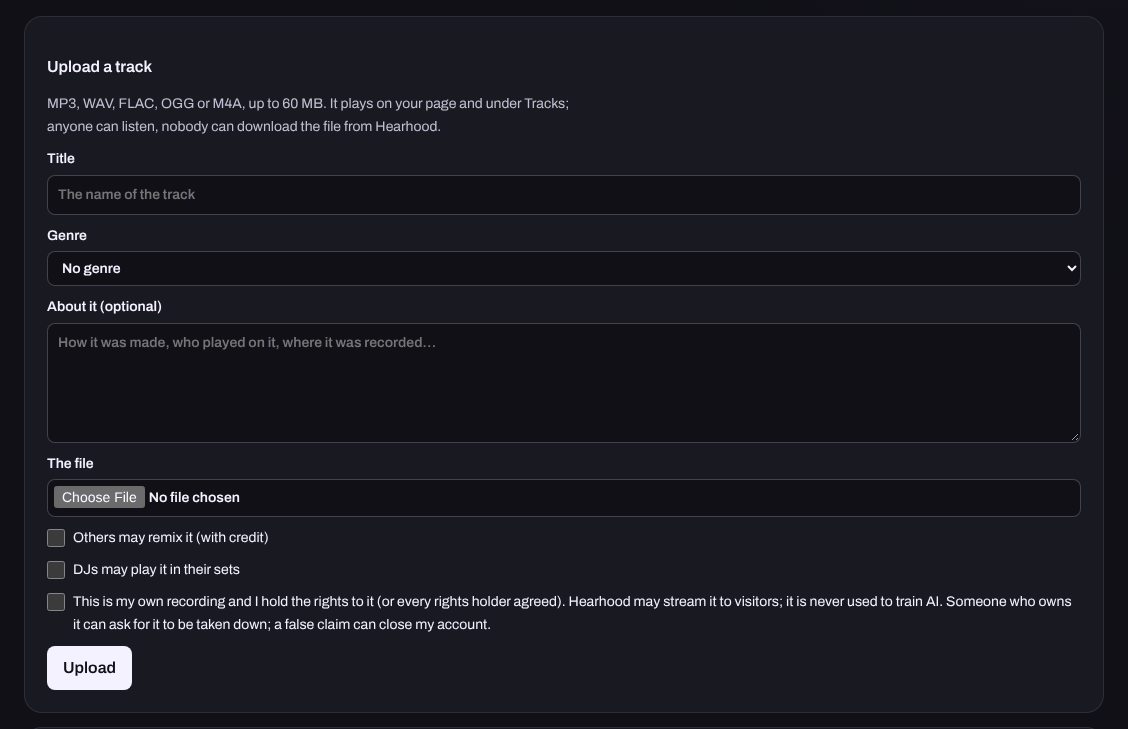
The planned upload workflow accepts MP3, WAV, FLAC, OGG and M4A audio. Follow the limits shown in your own upload screen, since size and account limits can change. Use an artist display name and a clear title. Avoid putting private contact details in the description.
Keep a separate copy of the original file. A public listening page is not a replacement for your production backup.
3. Understand draft and public states
For an ordinary member, successful upload creates a publicly listed track immediately. Check the file and its details before uploading, especially if the recording is private. The track controls then offer Hide or Show on your page. Hiding a track removes its public listing; keep your own original file regardless.
Supervised accounts follow a different route: uploads depend on the parent’s upload permission and begin pending approval. A draft is not listed for public discovery. Upload availability does not override account age rules.
Sharing permission for listening is separate from optional remix or DJ permissions. Read the choices shown to you. Do not promise that every listener is allowed to reuse the recording in another work.
4. Check, update or take down
Open the listening page after upload and verify the title, artist credit, audio and visibility. Use your track controls to edit the details or take your own track down. If a track is archived by the team, do not assume it can simply be relisted by its uploader.
Quick answers
Is this the same as sharing an editable song? No. See recordings and project links.
Does uploading mean I am being paid? No. Do not treat a public listening link as a royalty or payout arrangement.
Can a public recording be guaranteed impossible to copy? No. A player without a download button is not a guarantee against capture.